
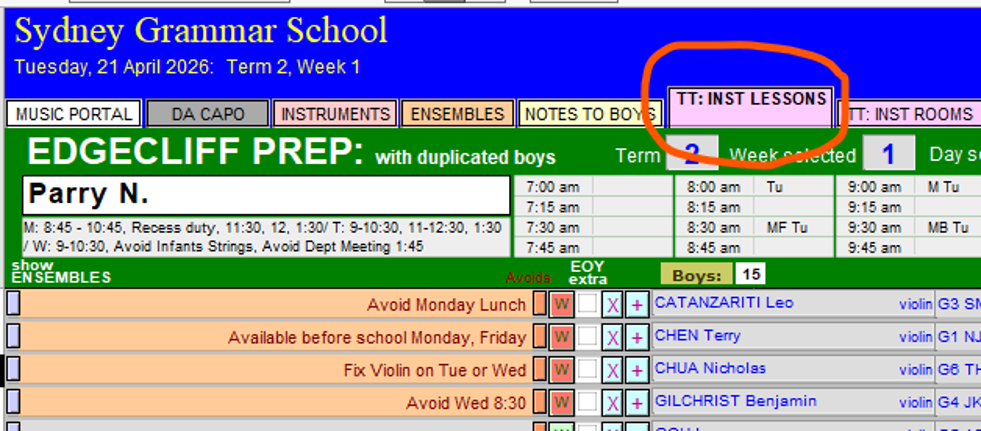
1. Go to the TT: INSTL LESSONS tab
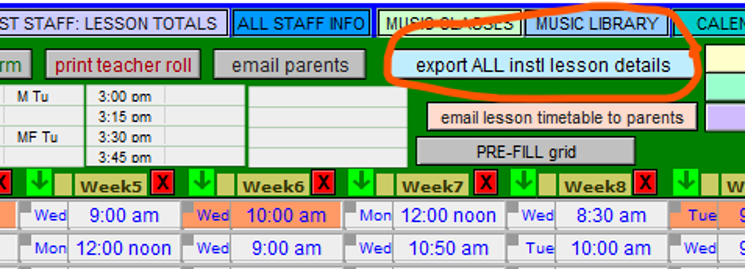
2. Click on the “export ALL lesson details” button
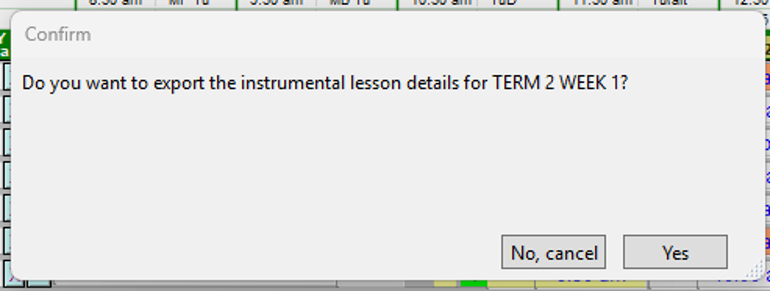
3. Choose Yes
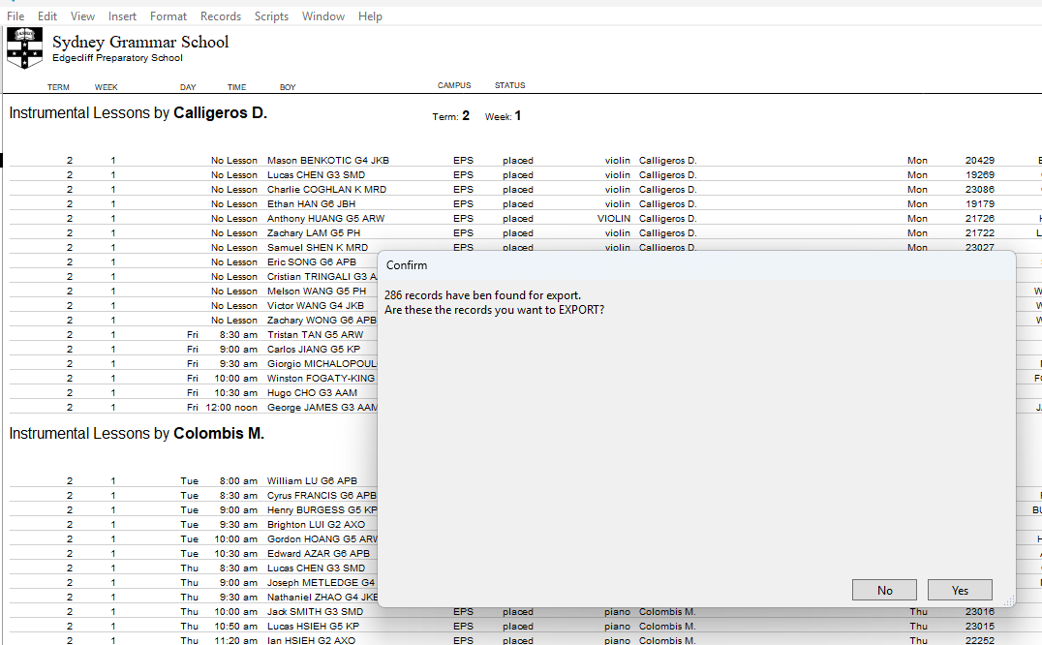
4. Choose Yes
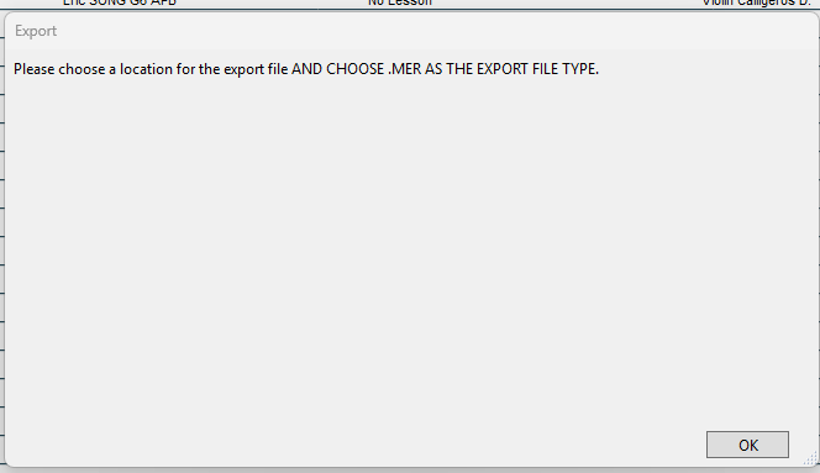
5. Choose OK
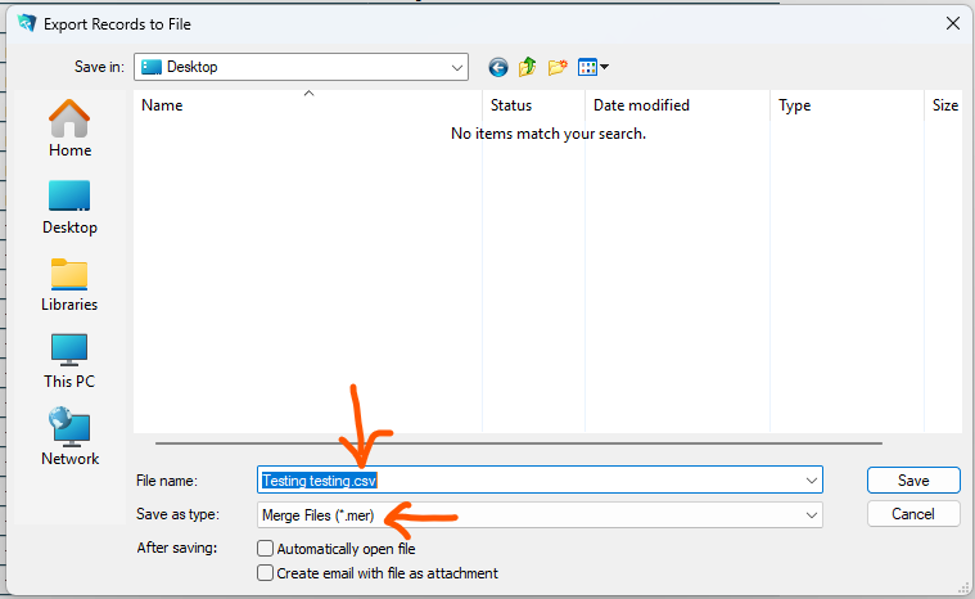
6. Save as type box: Choose Merge Files (*.mer)
IMPORTANT: File Name box: type in the name you want to assign to the file AND ADD “.CSV” TO THE END OF THE FILE NAME
Choose Save
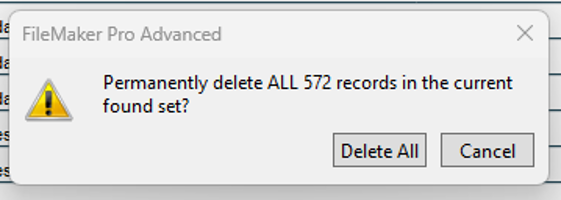
7. The temporary records you created should then be deleted.
Choose Delete All
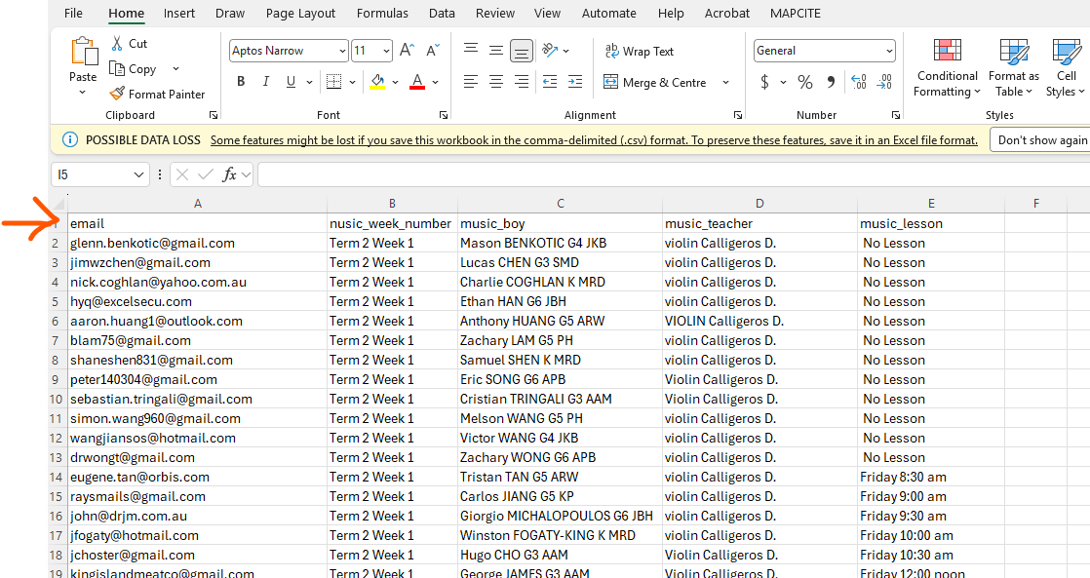
8. Open the .csv file you have just created.
Check that the top row contains the column headings as shown below
9. As a check on the data, sort the records by music_boy. 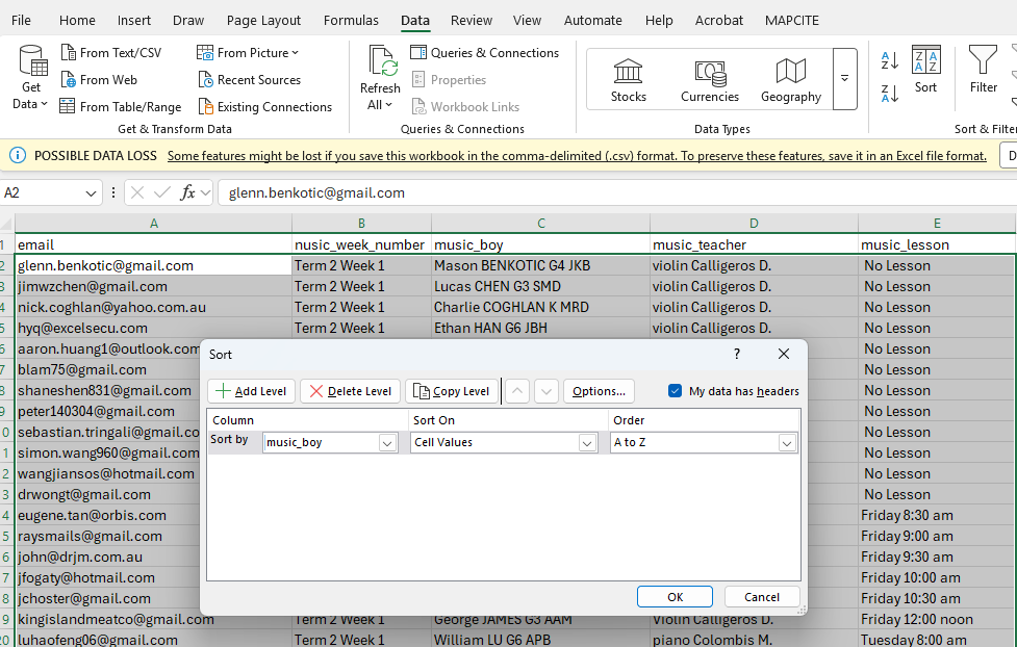
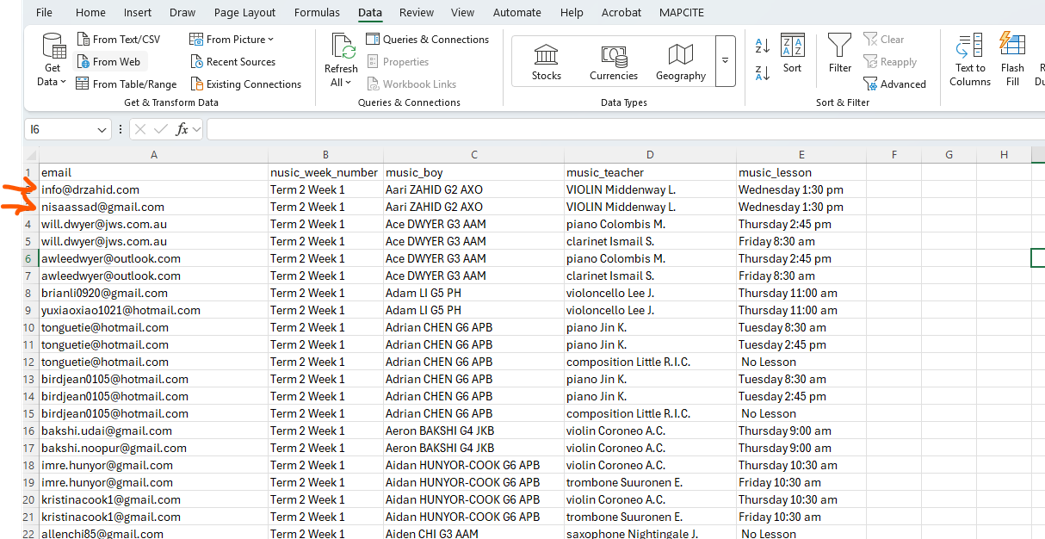
10. There should be 2 records with the same instrumental lesson details for each boy – one record associated with each parent’s email.
If a boy learns 2 instruments (as for Ace DWYER below) there will be 4 records:
11. Go to the Music Email App
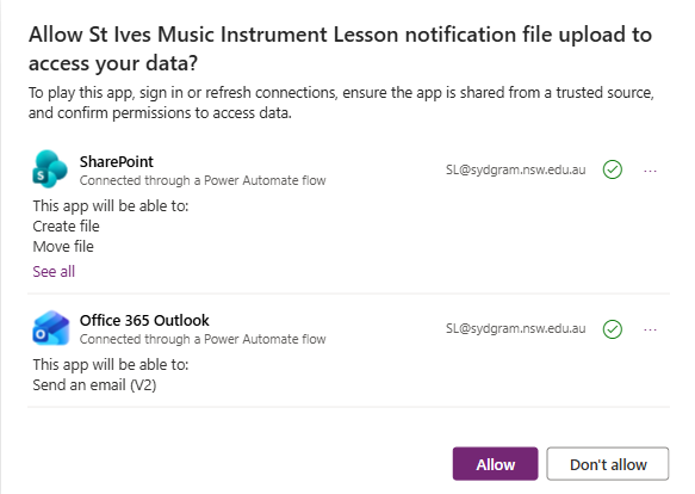
12. When you open the App first time, you may see this message, click Allow to grant permission.
13. In order to upload the file
a. Open the CSV file just download from Filemaker, make sure you click “Save” button to save the CSV file again.
b. Go back to Notification App, click on the “Attach File” button on the left.
c. Navigate to the CSV file you just saved again.
d. Click “Upload” button on the bottom of left hand side to load the details.
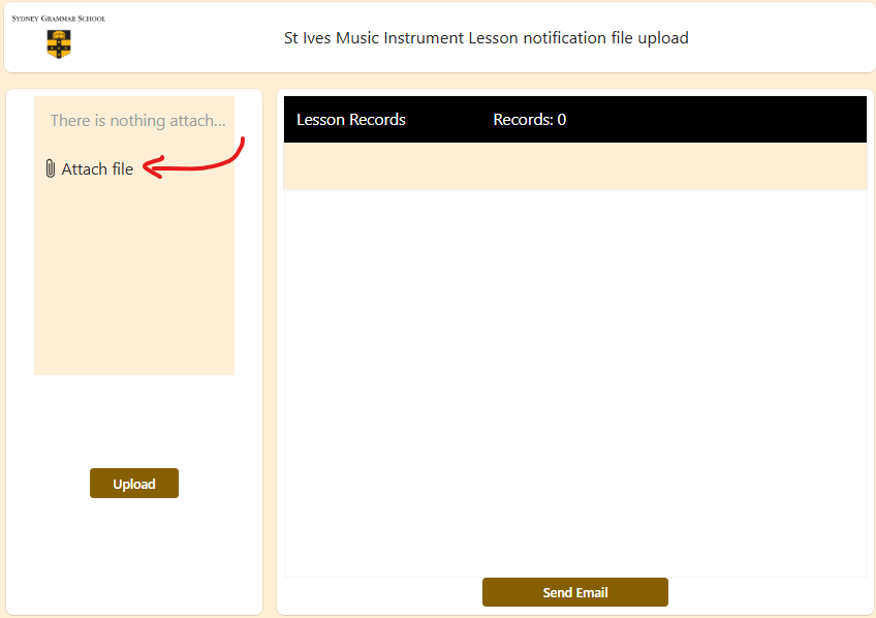
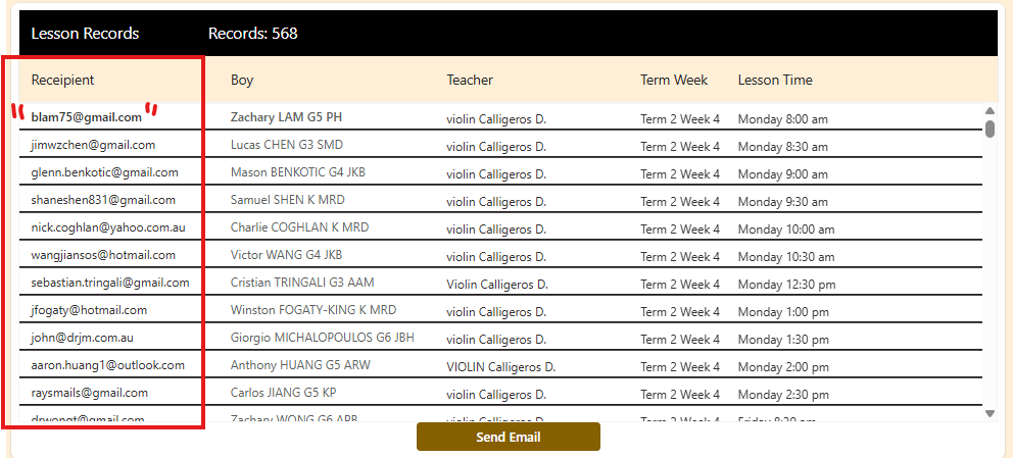
14. Then you should see records listing on the right-hand side with column titles, review this information before click “Send Email” Button. (Please make sure No double quote on any data uploaded, if you see all data presented with double quote, please go back and re-save the CSV file in Excel.)
15. The historical sent details is available from the backend.
Historical sent detail stored in this archive folder.