
This article explains how to book a school vehicle using the Outlook Calendar system. All bookings must be made through the vehicle resource calendars from now.
Part 1: Vehicle Booking Instructions (Formal Version)
Available Vehicles List:
| Vehicle Name | Email Address |
| Vehicle 1 - Hyundai i30 | vehicle_car@sydgram.nsw.edu.au |
| Vehicle 2 - Toyota Hilux | vehicle_ute@sydgram.nsw.edu.au |
| Vehicle 3 - Toyota Hilux & Toolbox | vehicle_ute_toolbox@sydgram.nsw.edu.au |
| Vehicle 4 - Toyota Coaster 22 Seat Bus | vehicle_bus@sydgram.nsw.edu.au |
| Vehicle 5 - Toyota Van (Maintenance van) | vehicle_van@sydgram.nsw.edu.au |
| Vehicle 6 - Manual Troop Carrier 10 seats | vehicle_carrier@sydgram.nsw.edu.au |
| Trailer 2 - Open Cage | trailer_cage@sydgram.nsw.edu.au |
| Trailer 3 - Enclosed Cargo | trailer_cargo@sydgram.nsw.edu.au |
1. Open Outlook Calendar
https://outlook.office.com/calendar/view
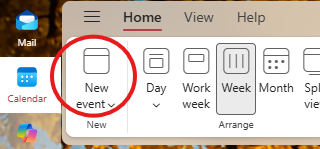
2. Create a New Booking: Open the Outlook Calendar and select "New Meeting" or "New Event."
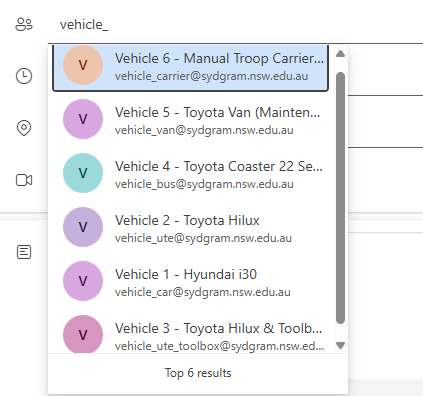
3. Add Vehicle as an Attendee, Put in Tile, Add Vehicle: By typing in area "Invite required attendees",
vehicle_
to select the desired Vehicle from our directory.
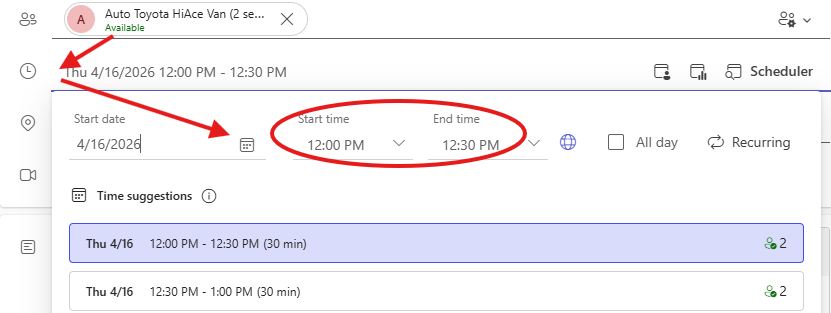
4. Click on the "Date & Time" field, selecting your desired booking date and time.
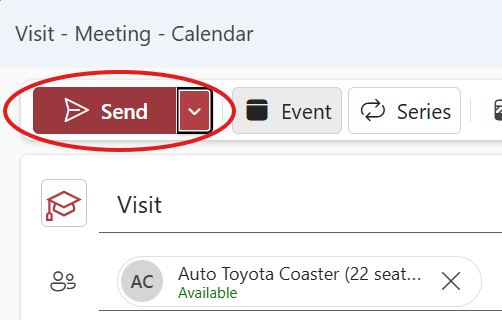
5. Once the vehicle is added, click Send. You will receive a notification confirming the booking.
6. Please check your booking confirmation email to ensure the vehicle has been successfully booked.
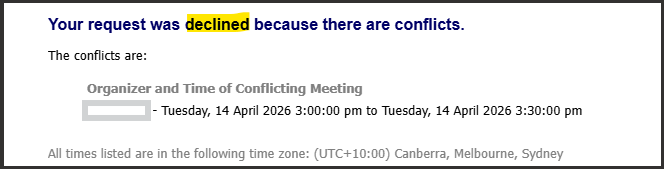
Failed booking example:
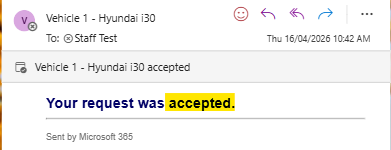
Successful booking example:
When using the vehicle, please remember to:
- You MUST fill the logbook located inside the vehicle. It is a WHS requirement that the logbook is complete with each use of the vehicle
- Report any damage to the Facilities Office as soon possible
- Refill the vehicle using the allocated petrol card if under ¼ tank (PIN is the first 4 digit of card)
Part 2: Subscribe the Vehicle Booking Calendar
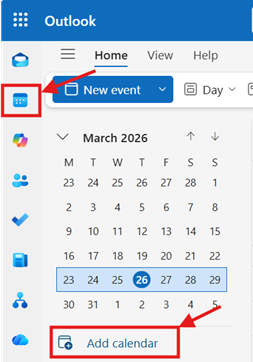
1. Add Vehicle calendar:
- Select Add Calendar
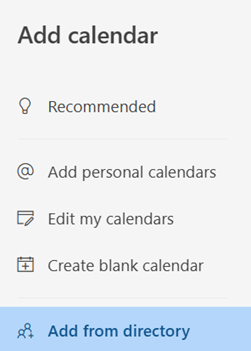
- Select Add from Directory
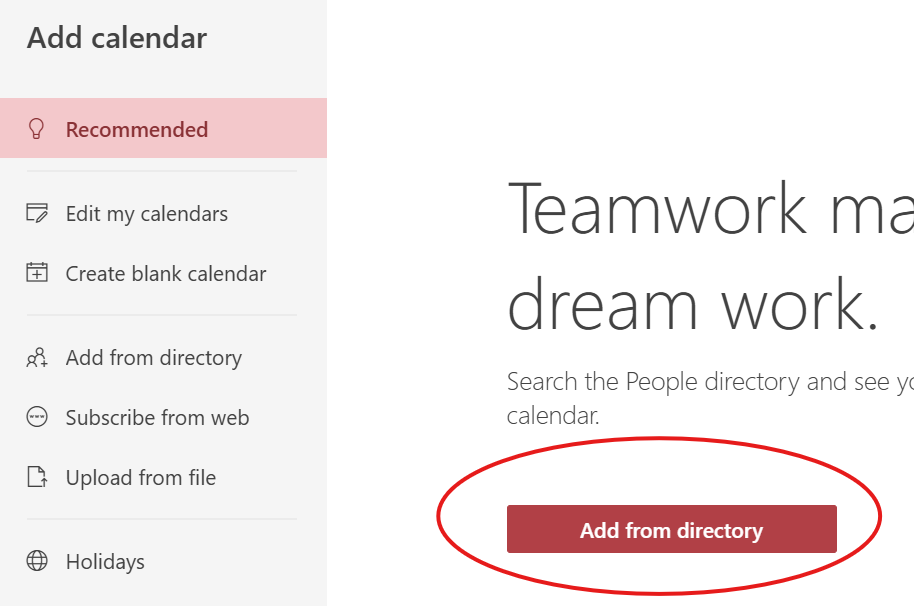
2. Search the Directory
2.1 In the Add from Directory window:
Select the account from which to search. Normally is your own email.
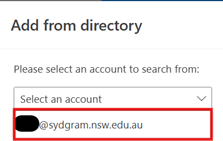
2.2 Enter the name or email address of the resource you wish to add.
For this purpose, type and search for: "Vehicle_"
vehicle_
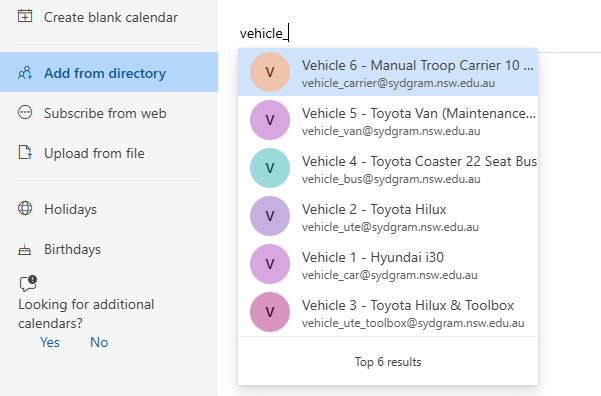
3. Choose the Calendar Group
From the Add to dropdown menu, choose the calendar group to which the “VehicleBooking” calendar you want to be added.
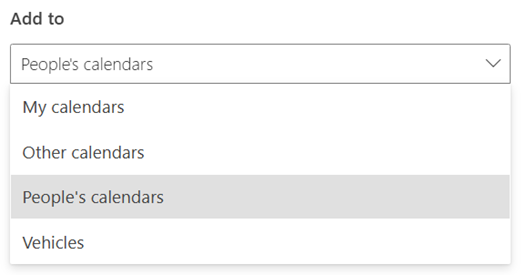
4. Complete the Addition
Click Add to finalize the process.
The Vehicle Booking calendar will now appear in your selected group.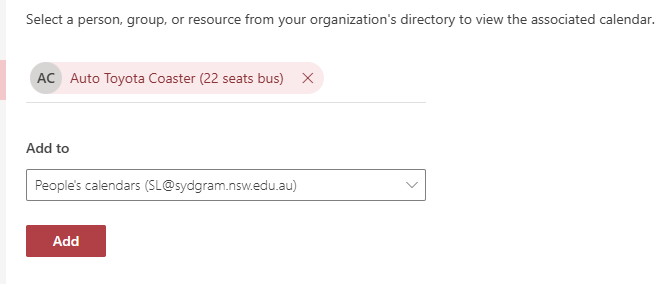
Troubleshooting
Issue: Vehicle does not appear in search
- Ensure you typed
vehicle_correctly - Try searching the full email address
Issue: Booking not confirmed
- Check if the time slot overlaps with another booking
- Ensure the invitation was sent to the correct vehicle resource
- please referring to this guide here