
How to Access a Shared Mailbox in Microsoft 365 Outlook
If a shared mailbox has been delegated to you (e.g., finance@…, enrolments@…), you can access it through Outlook on your computer or Outlook on the web. No password is required for the shared mailbox.
Option 1: Outlook Desktop App (Windows)
Once access is granted, Outlook normally adds the mailbox automatically.
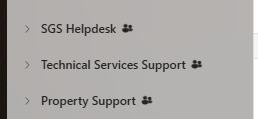 If you don’t see it, follow the steps below:
Open Outlook.
Go to File (top left).
Select Settings → Accounts → Shared with me
Then you should see a list of mailbox here, if the one you were looking is not in the list:
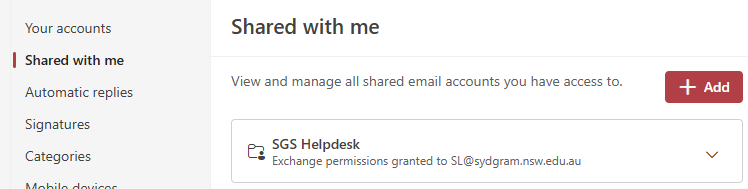
Click + Add …
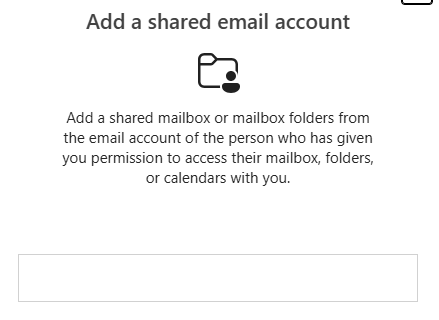
Type the name or address of the shared mailbox (example: finance@school.edu.au).
Click OK, then Continue, then Close.
Restart Outlook — the shared mailbox will appear on the left side panel.
Option 2: Outlook on the Web (Browser)
Go to outlook.office.com and sign in with your staff account.
On the left folder pane, right-click your name (e.g., your mailbox).
Select Add shared folder or mailbox.
Type the name or email address of the shared mailbox.
Click Add.
The mailbox will now appear on the left panel.
How to Send as the Shared Mailbox
When replying or sending new mail from the shared mailbox:
Click New Mail.
In the From field, choose the shared mailbox (e.g., finance@…).
If the From field is not visible, click Options → From (in desktop version).
Compose and send your message.
You may need Send As or Send on Behalf permission. If you don’t see the shared mailbox in the From menu, please contact IT.
Troubleshooting
Mailbox doesn’t show after being added?
Close and reopen Outlook; it can take 5–10 minutes after permission is granted.Cannot send emails from the shared mailbox?
Permissions may be missing. Contact IT support.