
1. Click the invitation URL received in your email inbox.
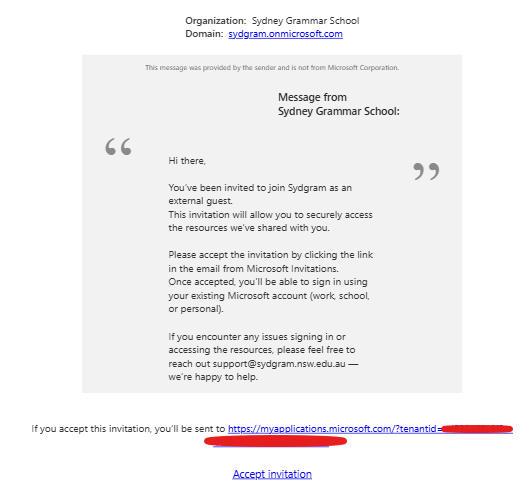
2. After you Accept invitation, you may be asked to setup Multi-factor authentication to verify your account.
- Please download the Microsoft Authenticator app if you haven't. Then, Hit "Next"
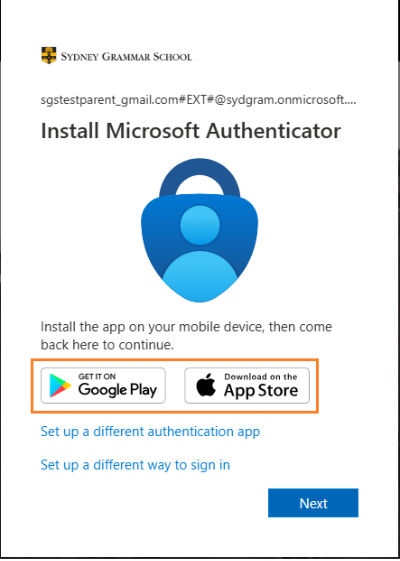
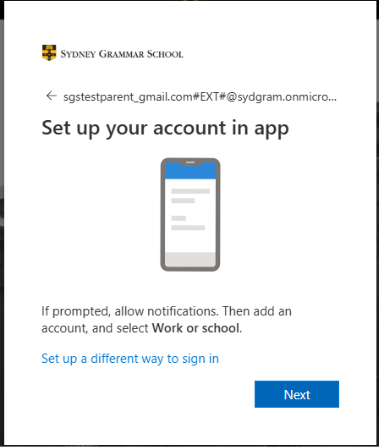
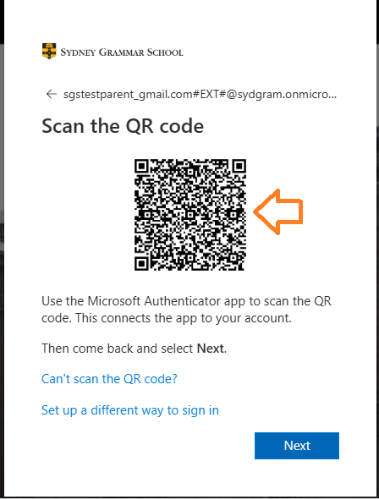
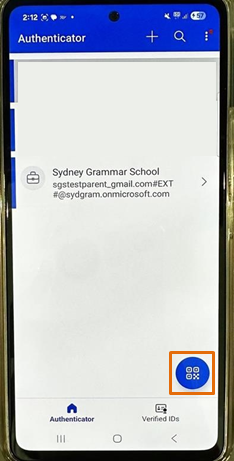
- On your computer screen, you will see a QR code(left image). Open Microsoft Authenticator app from your mobile and click Scan icon (right image - orange box) and scan this code.
-
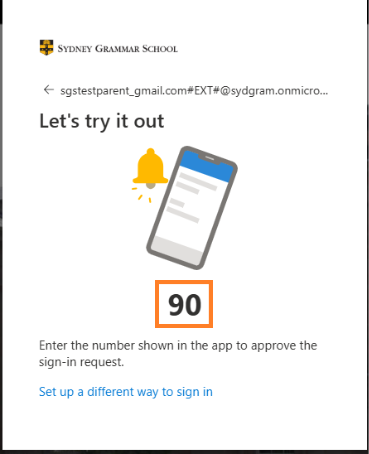
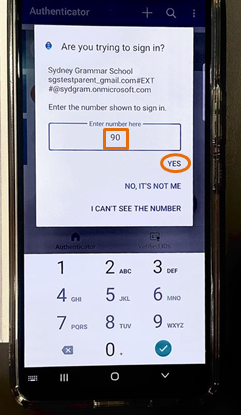
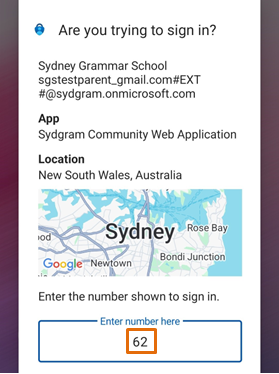
- The code will be shown on your desktop screen (left image). A prompt will appear on your mobile device asking: "Are you trying to sign in?" (right image). Type the code into the Microsoft Authenticator app that appears from the laptop and click YES.
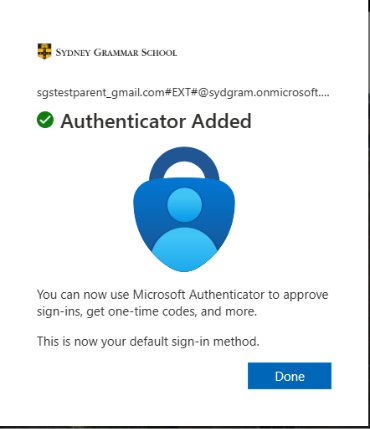
- Once complete, you’ll see confirmation on your computer screen. Hit Done.
- Open the app from your mobile and type code that appears from the laptop and tap Yes on your mobile device.
3. Once MFA process completed, then you can Log in to Microsoft Teams
Using a Web Browser
Open your browser (Chrome/Edge recommended).
Go to website: https://teams.microsoft.com/v2/
Sign in with your invited email address (e.g., username@yourschoolname.nsw.edu.au).
Enter your password and complete any verification if asked.
Click On Apps on the left side.
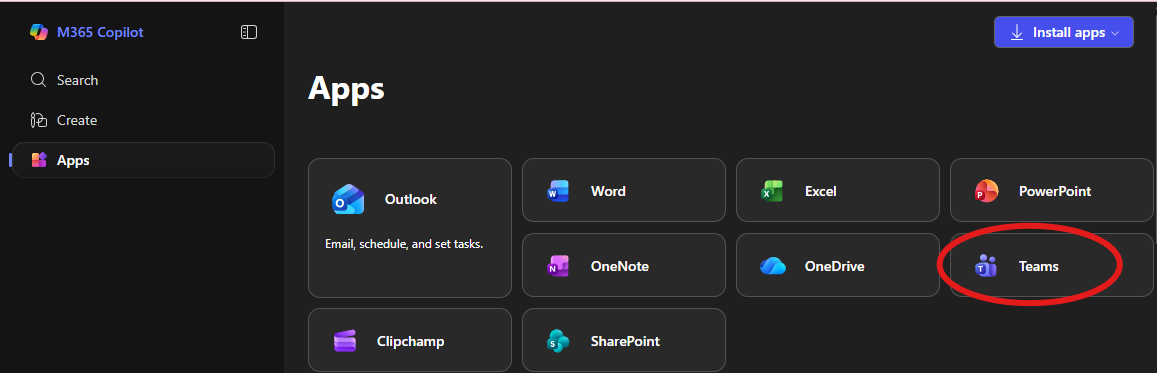
Open "Teams"
4. Open Your Team
- After you have login your team, click on the your profile icon on top right corner, you will see Personal menu, Select "Sydney Grammar School"
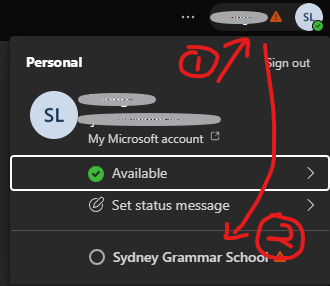
- After logging in "Sydney Grammar School" , you’ll see the Teams icon on the left menu.
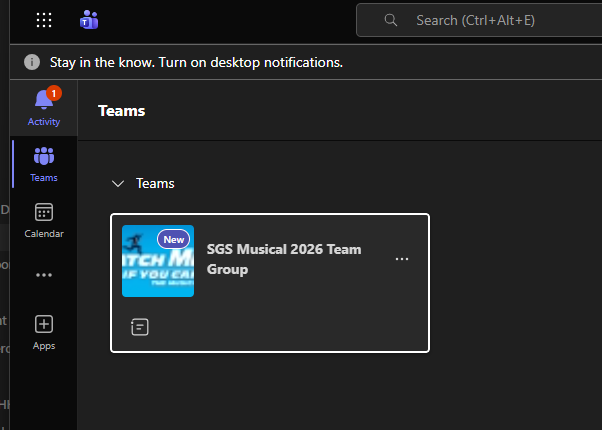
- Click Teams.
- Look for your class group (e.g., SGS Musical 2026 ).
- Click on it to enter your Team.
5. View Posts (Class Announcements & Messages)
Inside the class group, you will automatically land on the Posts tab.
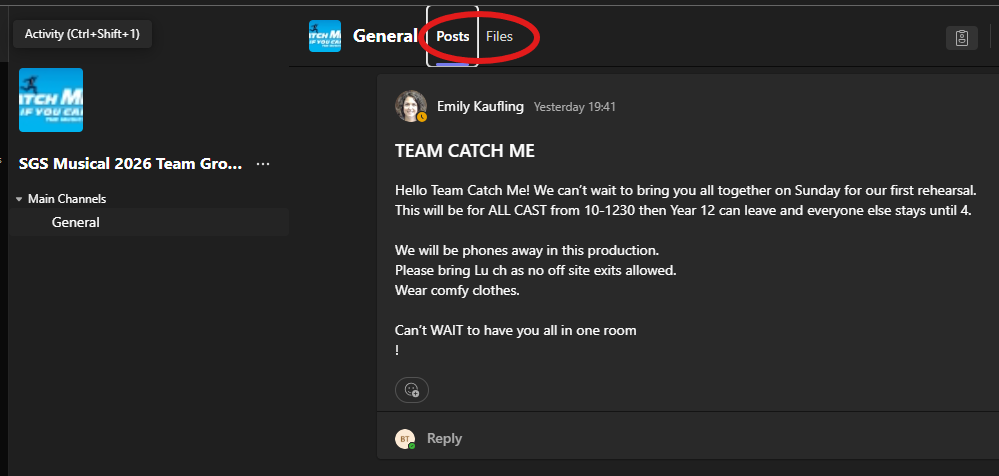
Here you can:
See announcements
Read class updates
View shared links or instructions
6. View Class Files
Go to the top menu inside your Team.
Click Files.
You will see, resources shared by your teacher
Click any file to open or download it.