
1. Log in to Microsoft Teams
Using a Web Browser
Open your browser (Chrome/Edge recommended).
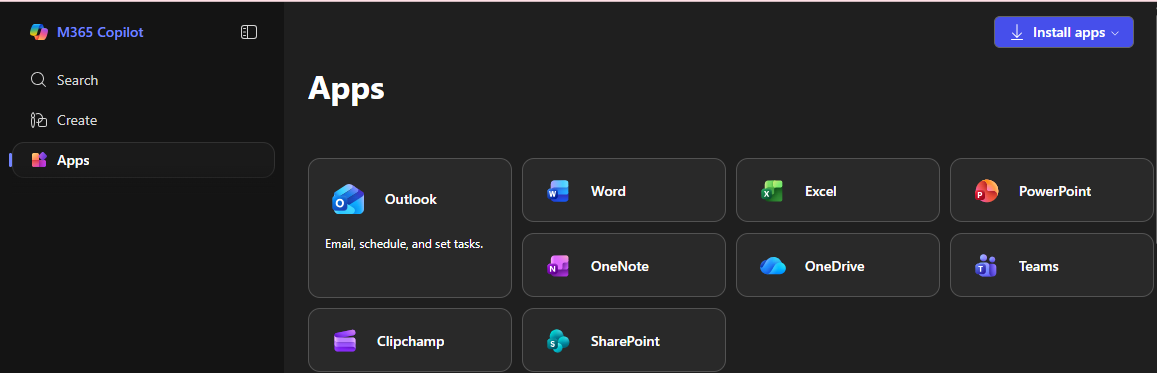
Go to website: https://office.com
Sign in with your school email address (e.g., username@sydgrammar.nsw.edu.au).
Enter your school password and complete any verification if asked.
Click On Apps on the left side
Open "Teams"
2. Open Your Class Team
After logging in, you’ll see the Teams icon on the left menu.
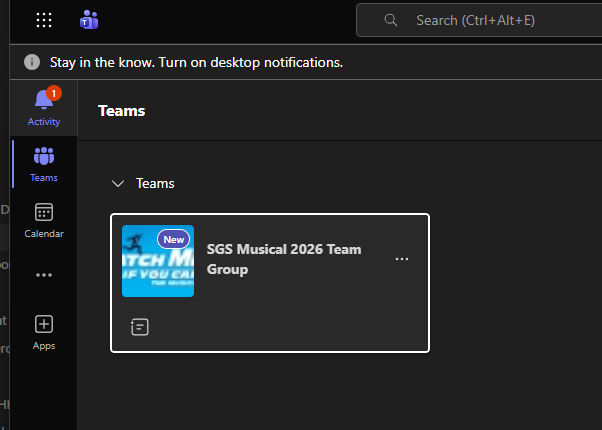
Click Teams.
Look for your class group (e.g., SGS Musical 2026 ).
Click on it to enter your Team.
3. View Posts (Class Announcements & Messages)
Inside the class group, you will automatically land on the Posts tab.
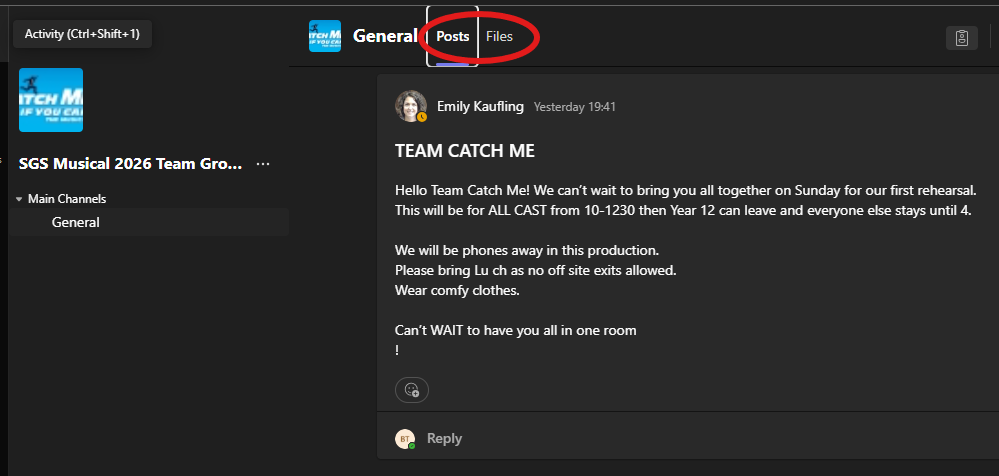
Here you can:
See announcements
Read class updates
View shared links or instructions
4. View Class Files
Go to the top menu inside your Team.
Click Files.
You will see, resources shared by your teacher
Click any file to open or download it.