
Multi-Factor Authentication (MFA) – Information for Parents and Carers (setup via Desktop)
To help keep parent accounts and the school network secure, we are introducing Multi-Factor Authentication (MFA) for all users logins overtime. MFA, sometimes called 2-Step Verification or 2FA adds an extra layer of protection when students sign in to school systems.
What Is MFA?
Multi-Factor Authentication (MFA) adds an extra layer of protection to your account. It ensures that the person logging in is really you — not someone else who happens to know your password. After entering your password, you’ll be asked to complete a quick additional step, such as approving a sign-in through an app on your phone.
This type of security is already common in social media platforms, and online banking, and it’s becoming the standard for keeping online accounts safe in education.
How It Works
When you log in to school systems from home or outside the school, they’ll get a notification on the phone asking them to confirm it’s really you.
The app used is the Microsoft Authenticator, which is free and quick to set up.
A. Setting Up Microsoft Authenticator for New Parents
1. Install the Microsoft Authenticator App
- On Android, download it from the Google Play Store.
- On iPhone, get it from the App Store.
2. Access the Parent Portal
- On your computer, navigate to the Sydney Grammar School Parent Portal: https://sydneygrammar.community/parents/
- From the Community Quick Links section at the top of the page, click Parent Portal.
3. Enter your email address and password registered to SGS.
4. Click Next on the More information required page
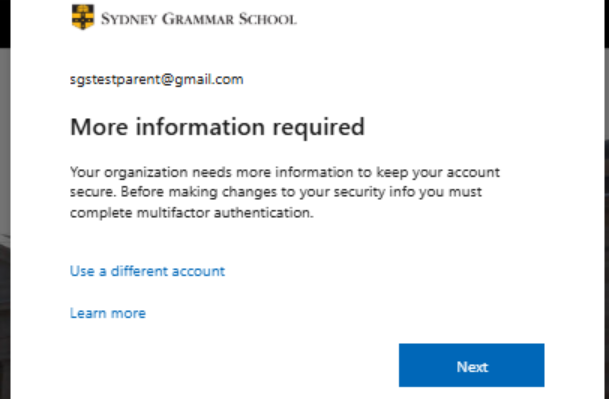
- From here, you will have options to set up your multi-factor authentication with the Microsoft Authenticator app and/or your mobile device.
5. You will see this screen once you login with your email and password.
Click Download now if you haven’t installed it on your mobile phone, otherwise click Next.
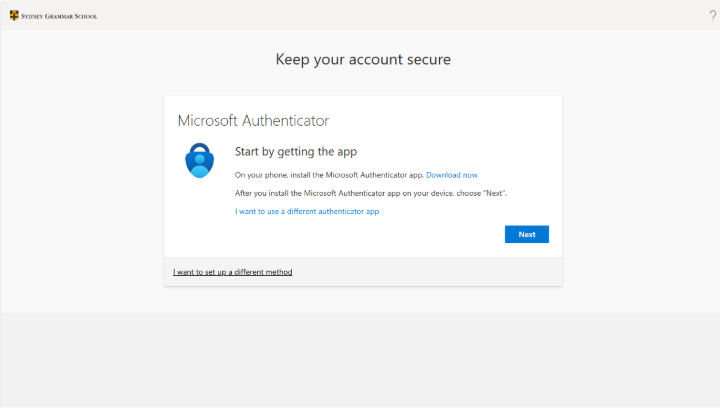
6. Hit Next
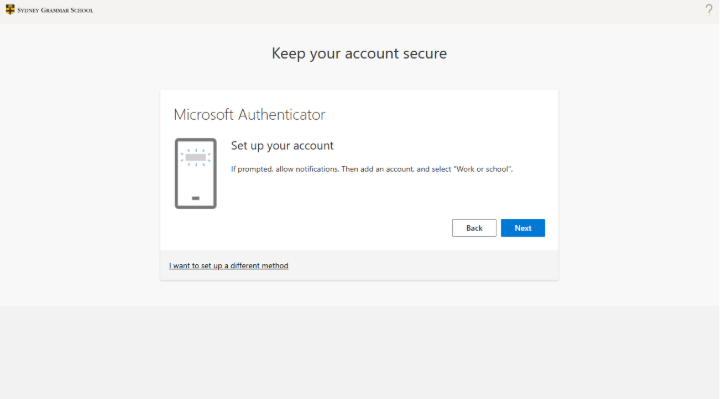
7. When you see this screen, Open Microsoft Authenticator app and click blue button at the bottom right
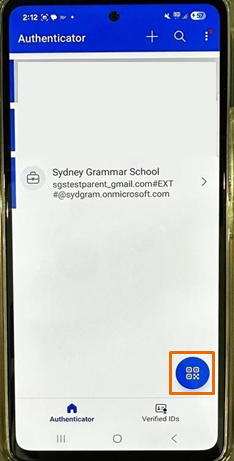
8. Scan the QR code shown in your screen.
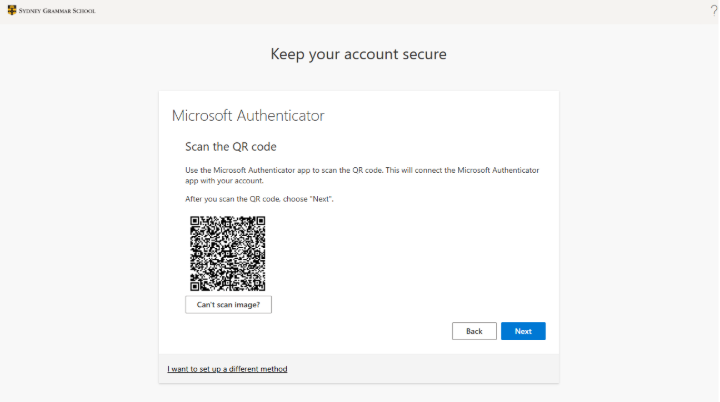
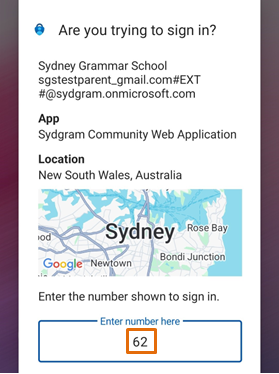
9. Check your mobile, there is one pop up asking: Are you trying to sign in?
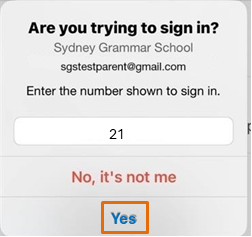
10. Type the code that is shown on the desktop screen and click Yes
Hit Next once it is done.
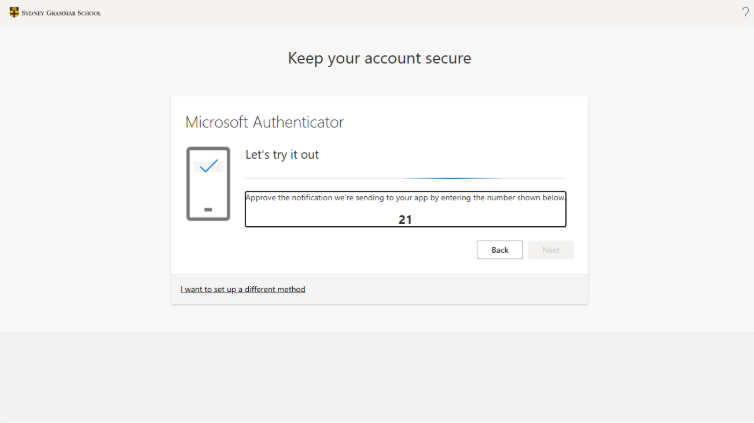
11. Hit Next
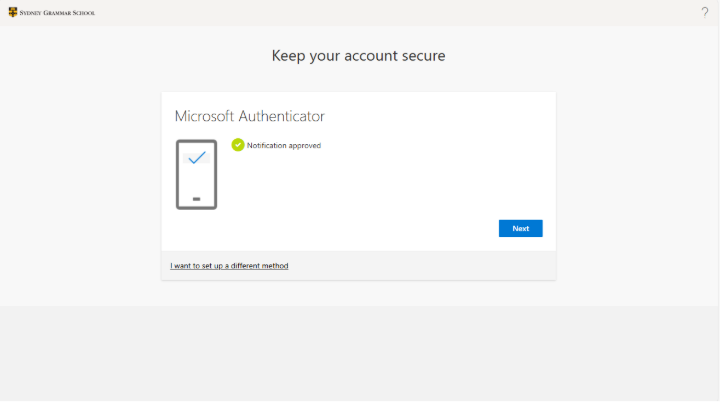
12. All done!
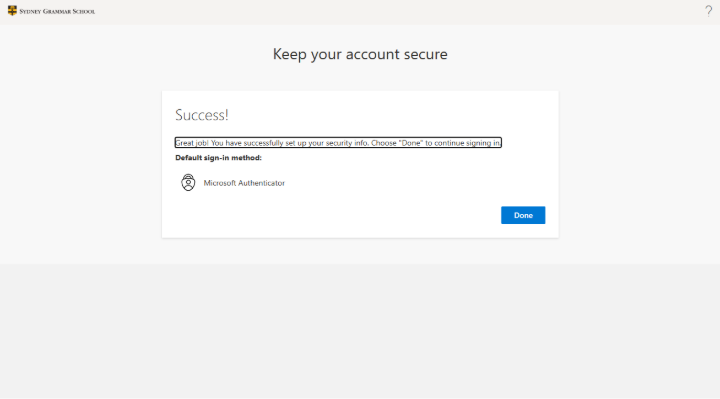
You have successfully set up Microsoft Authenticator for Multi-Factor Authentication. From now on, you will use this app to verify your identity when accessing the Parent Portal.
B. Testing Your MFA Setup
1. Go to Parent Portal and type your email and password then login. You will see this pop up.
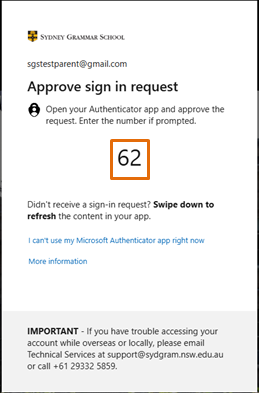
2. Open the app from your mobile and type code that appears from the laptop and tap Yes on your mobile device.
You’re now fully set up with Multi-Factor Authentication for the Parent Portal.