
To help keep parent accounts and the school network secure, we are introducing Multi-Factor Authentication (MFA) for all users logins overtime. MFA, sometimes called 2-Step Verification or 2FA adds an extra layer of protection when students sign in to school systems.
How It Works
When you log in to school systems from home or outside the school, they’ll get a notification on the phone asking them to confirm it’s really you. The app used is the Microsoft Authenticator, which is free and quick to set up.
If you already setup with Microsoft Authenticator App, please jump to Section B.
Section A. Set up Microsoft Authenticator (Existing Parents) - takes about 3 minute
Before you begin, please prepare the following:
* Your laptop — display the QR code to be scanned via mobile phone
* Your mobile phone — to use the Microsoft Authenticator app to scan QR code
* The email address — email address you registered with school is your username
Step 1 — Enter your email
Go to SGS Parent Portal: https://sydneygrammar.community/parents/
Type email address you registered with school and click Next.
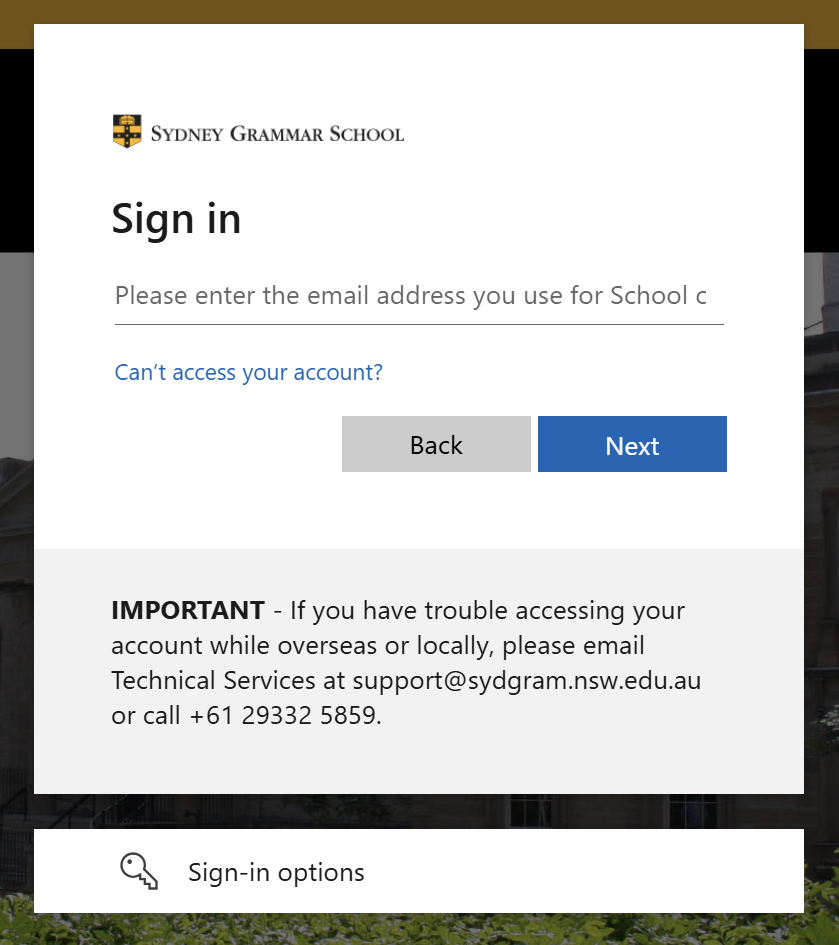
If you’ve previously used a verification code via email or mobile and have not yet set up Microsoft Authenticator, Microsoft now requires you to register for MFA. Follow these steps:
Step 2 — Make sure you have Microsoft Authenticator app on your mobile phone
You may see this screen. Please download the Microsoft Authenticator app if you haven't.
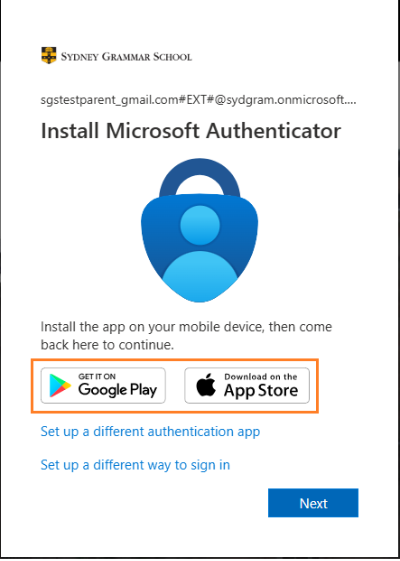
Hit Next.
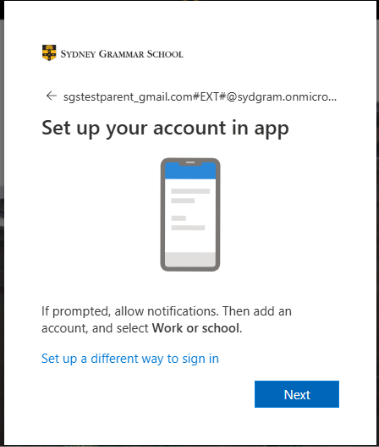
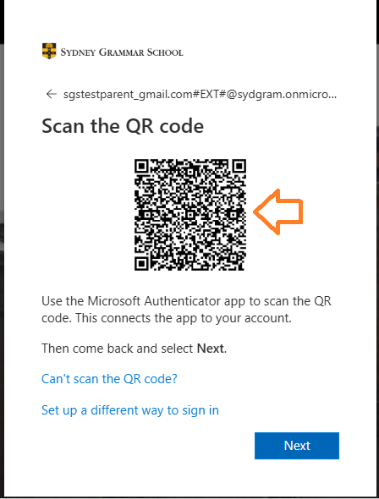
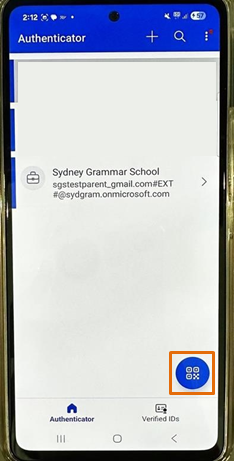
Step 3 — Scan QR Code
On your computer screen, you will see a QR code(left image). Open Microsoft Authenticator app from your mobile and click Scan icon (right image - orange box) and scan this code.
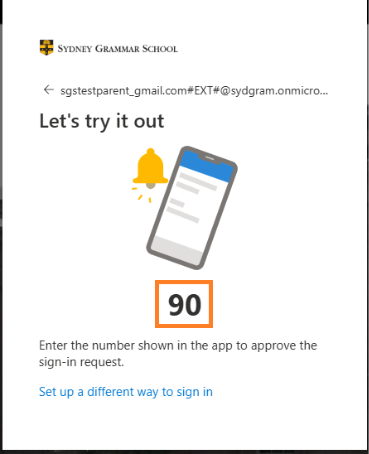
Step 4 — Verify the sign in code
The code will be shown on your desktop screen (left image). A prompt will appear on your mobile device asking: "Are you trying to sign in?" (right image). Type the code into the Microsoft Authenticator app that appears from the laptop and click YES.
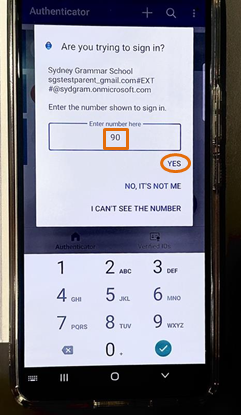
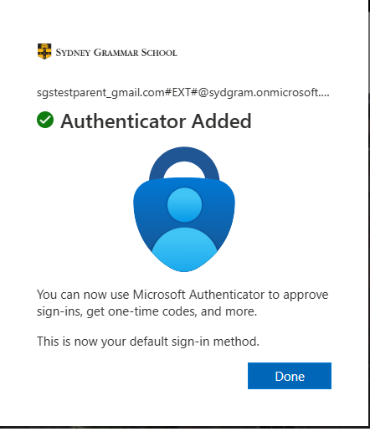
Step 5 — Setup Complete
Once complete, you’ll see confirmation on your computer screen. Hit Done.
Section B. Login Parent account via MFA.
Step 1 — Login Parent Account
Go to Parent Portal: https://sydneygrammar.community/parents/
Type your email and password then login.
You will see this pop up.
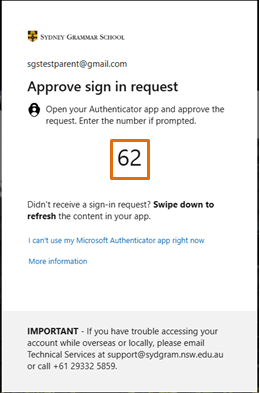
Step 2 — Login verification
Open the app from your mobile and type code that appears from the laptop and tap Yes on your mobile device.
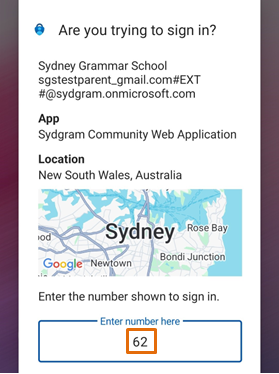
Step 3 — You are in!
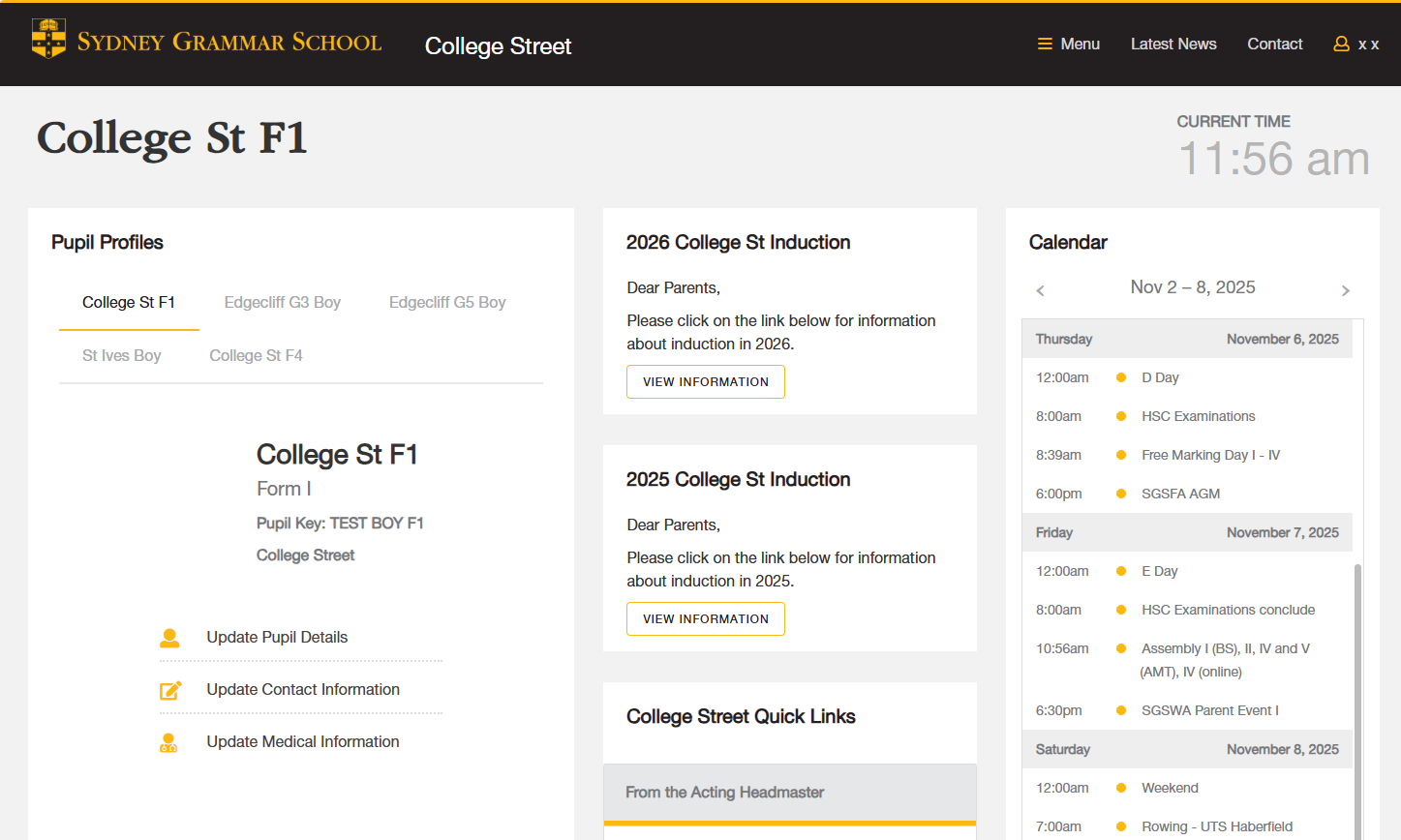
Once approved, You’re now successfully login the Parent Portal.
If you experience any issues during the login process, please email support@sydgram.nsw.edu.au and include the following information:
- The email address you use for the Parent Portal
- Your son’s campus and year level
Our friendly Helpdesk team will assist you as soon as possible. Providing a screenshot of the issue (if available) will greatly help us resolve your enquiry more quickly.