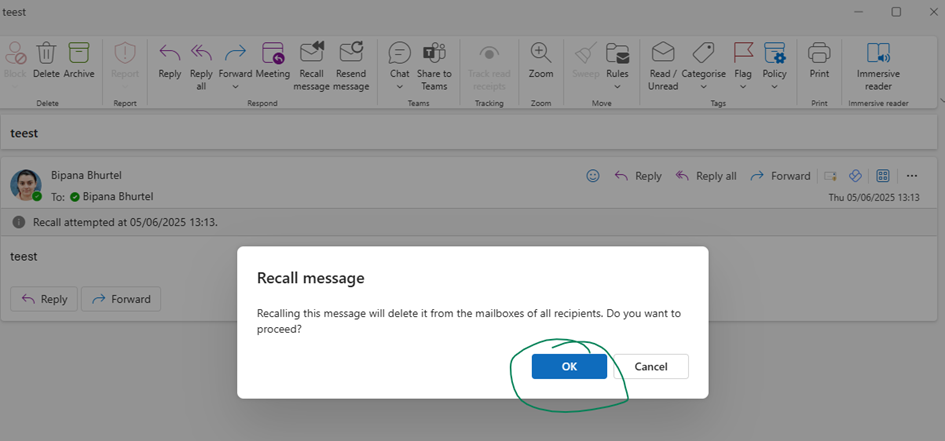
Function: Recall a sent email message in Microsoft Outlook Applicable Versions: Outlook Classic and New Outlook/Outlook Web Limitation: Email recall only works within the same organization and when the recipient hasn't opened the email yet.
Prerequisites
- Email must be sent to recipients within the same Exchange organization
- Recipient must not have opened the email
- You must have appropriate permissions to recall messages
Method 1: Outlook Classic
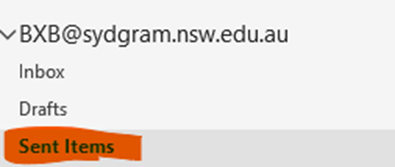
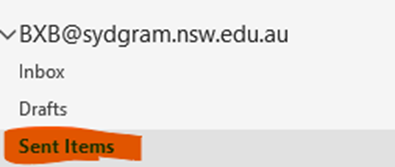
Step 1: Access Sent Items
- Open Microsoft Outlook Classic
- Click on Sent Items in the navigation pane
Step 2: Open the Email
- Locate the email you want to recall
- Double-click on the email to open it in a new window
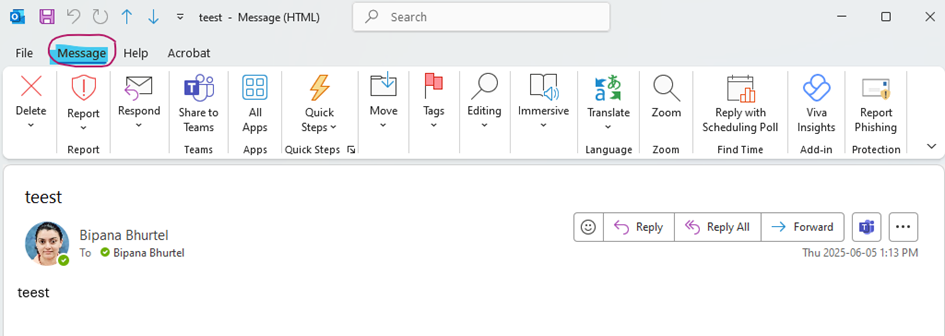
Step 3: Navigate to Message Tab
- In the opened email window, click on the Message tab in the ribbon
Step 4: Access Move Options
- Click on Move in the ribbon menu
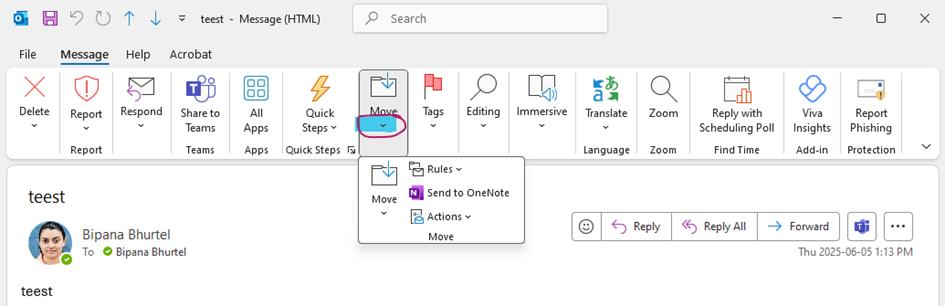
Step 5 : Open Actions Menu
- Click on Actions from the dropdown menu
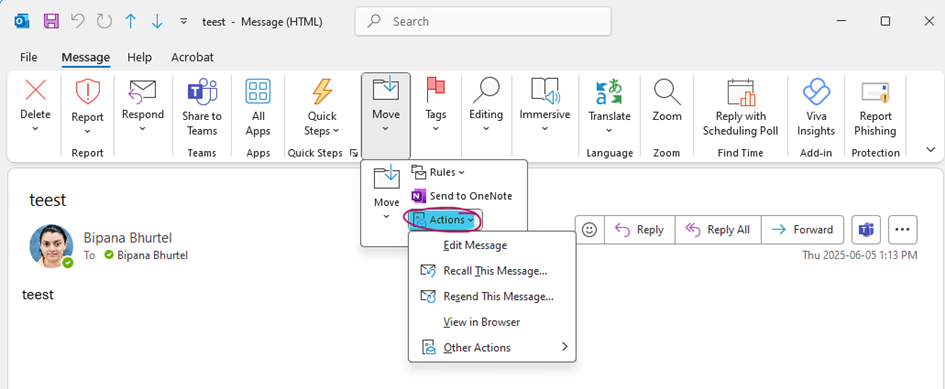
Step 6: Initiate Recall
- Click on Recall This Message from the Actions menu
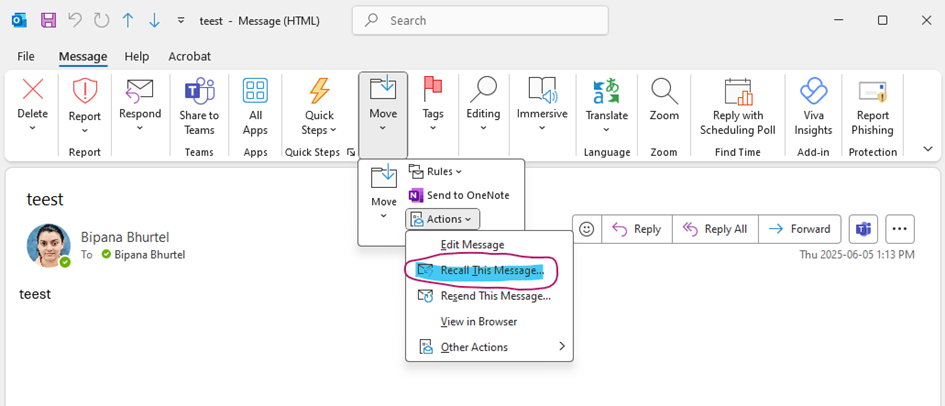
Step 7: Select Recall Options
- A dialog box will appear with recall options:
- Delete unread copies of this message
- Delete unread copies and replace with a new message
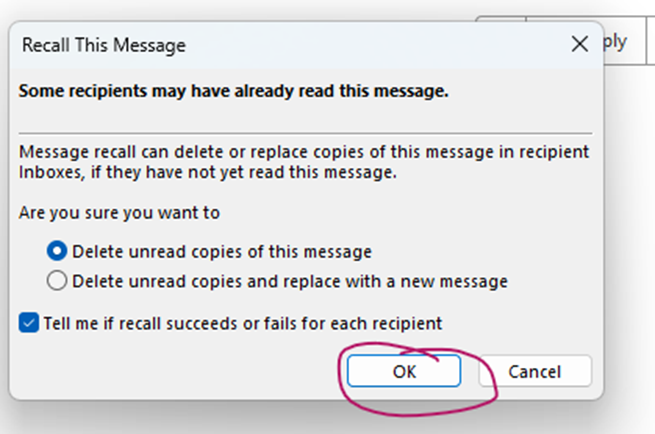
- Select your preferred option
- Click OK to confirm the recall
Method 2: New Outlook/Outlook Web
Step 1: Access Sent Items
- Open New Outlook or Outlook Web
- Click on Sent Items in the left navigation panel
Step 2: Open the Email
- Locate the email you want to recall
- Double-click on the email to open it
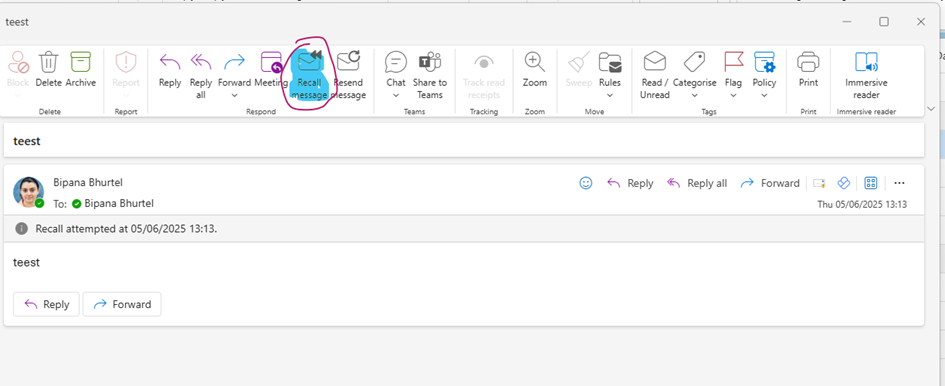
Step 3: Recall Message
- Click on Recall message button (typically located in the toolbar)
Step 4: Confirm Recall
- A confirmation dialog will appear
- Click OK to proceed with the recall