
Issue Description
Problem: Black shapes appearing on screen when accessing Aurion application Affected Systems: Windows systems with Intel Arc™ and Iris® Xe Graphics Root Cause: Outdated or incompatible Intel graphics drivers
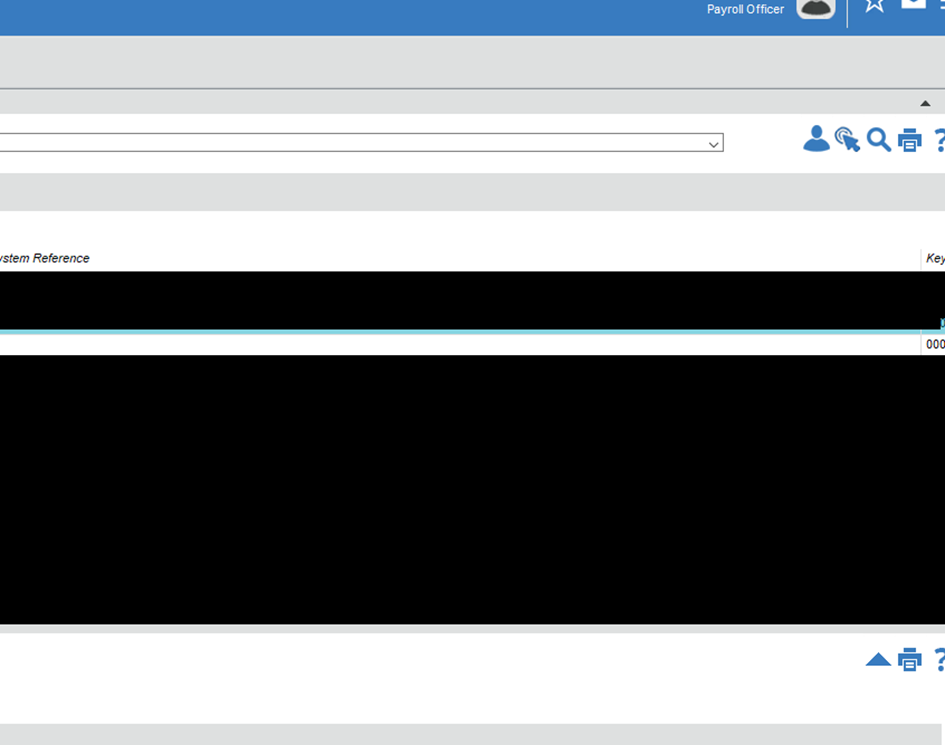
Resolution Steps:
Step 1: Download Intel Graphics Driver
- Navigate to the Intel Graphics Driver download page:
Step 2: Download Installation File
- Click on Download gfx_win_101.6877.exe to begin download
- Important : Version numbers may vary as Intel publishes updates
- Always download the latest available version

Step 3: Install Graphics Driver
- Navigate to your Downloads folder
- Double-click on the downloaded gfx_win_101.6877.exe file
- Follow the installation wizard prompts:
- Accept license agreements
- Allow installation permissions if prompted
- Wait for installation to complete
Step 4: System Restart
- After installation completes, restart your laptop
- Allow the system to fully boot up
- Wait for Windows to recognize the new driver installation
Step 5: Test Resolution
- Launch Aurion application
- Verify that black shapes no longer appear on screen
- Test normal application functionality