PortalHQ - Co-curricular - Sports and Fixtures for Sports Directors
Print
Created by: Sheng Li
Modified on: Wed, 26 Mar, 2025 at 9:33 AM
1. Navigate and Make sure you are in the right Year and Term.
- First of all, check if you are on the correct Campus, Year and Term.
- Term 2 will represent Winter Season Activities
- Term 4 will represent Summer Season Activities
- Term 1 and Term 3 should NOT be used at any time.
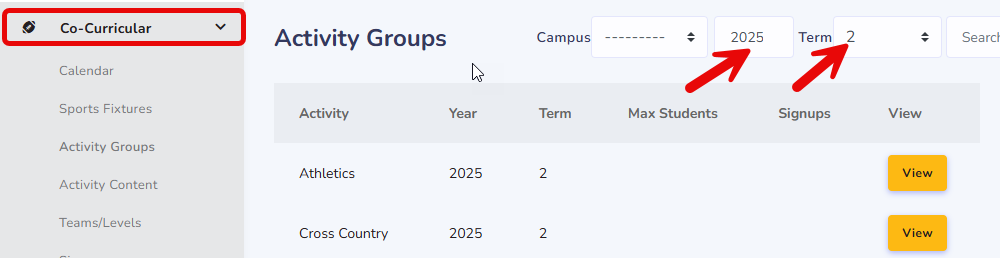
2. Activity Group
- If your Activity is not here, Create new Activity Group for the target Year and Term.
- Select Activity, Put in the current Year and Term.
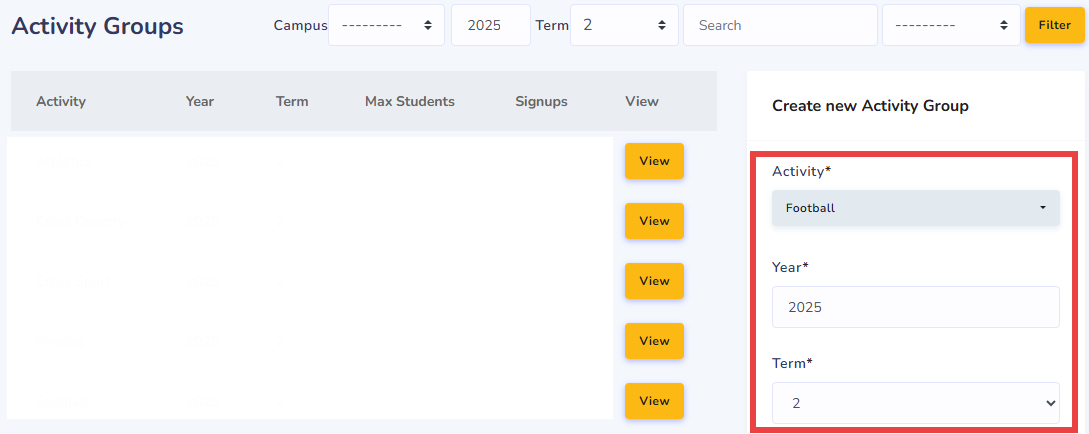
- Scroll down, fill in Campus and Click "Add Activity Group"
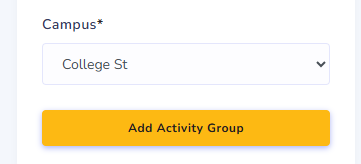
3. Assign team.
- Click on the new Activity Group you just created. In my example, Click on "Football".

- Option 1: Use "Copy Teams" from previous year and term

- Select the year and term you would like to copy the team list from, then
- All team lists with boys and teachers will be copy over, then you can manage the teams.
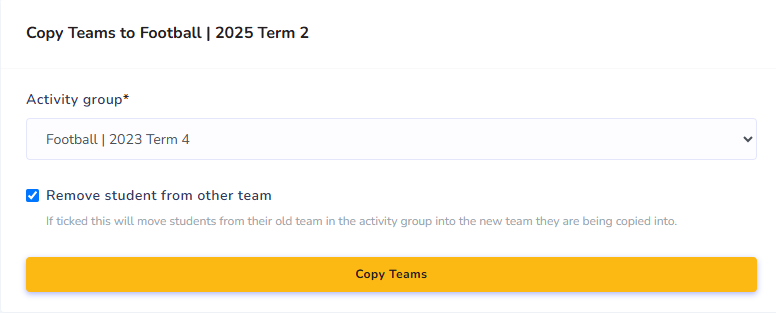
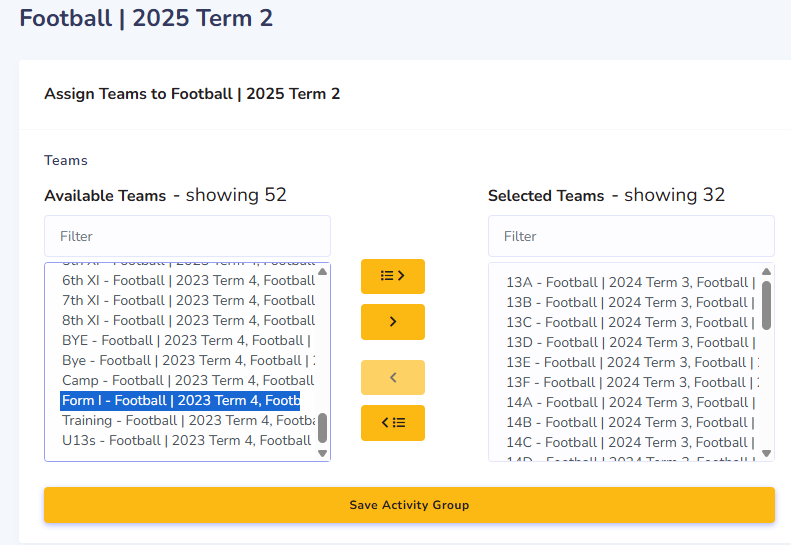
- Option 2: Use "Assign Teams" to find individual team created in previous year, then you can assign the team to this term using the ">" button in the middle, to transfer them to current year.

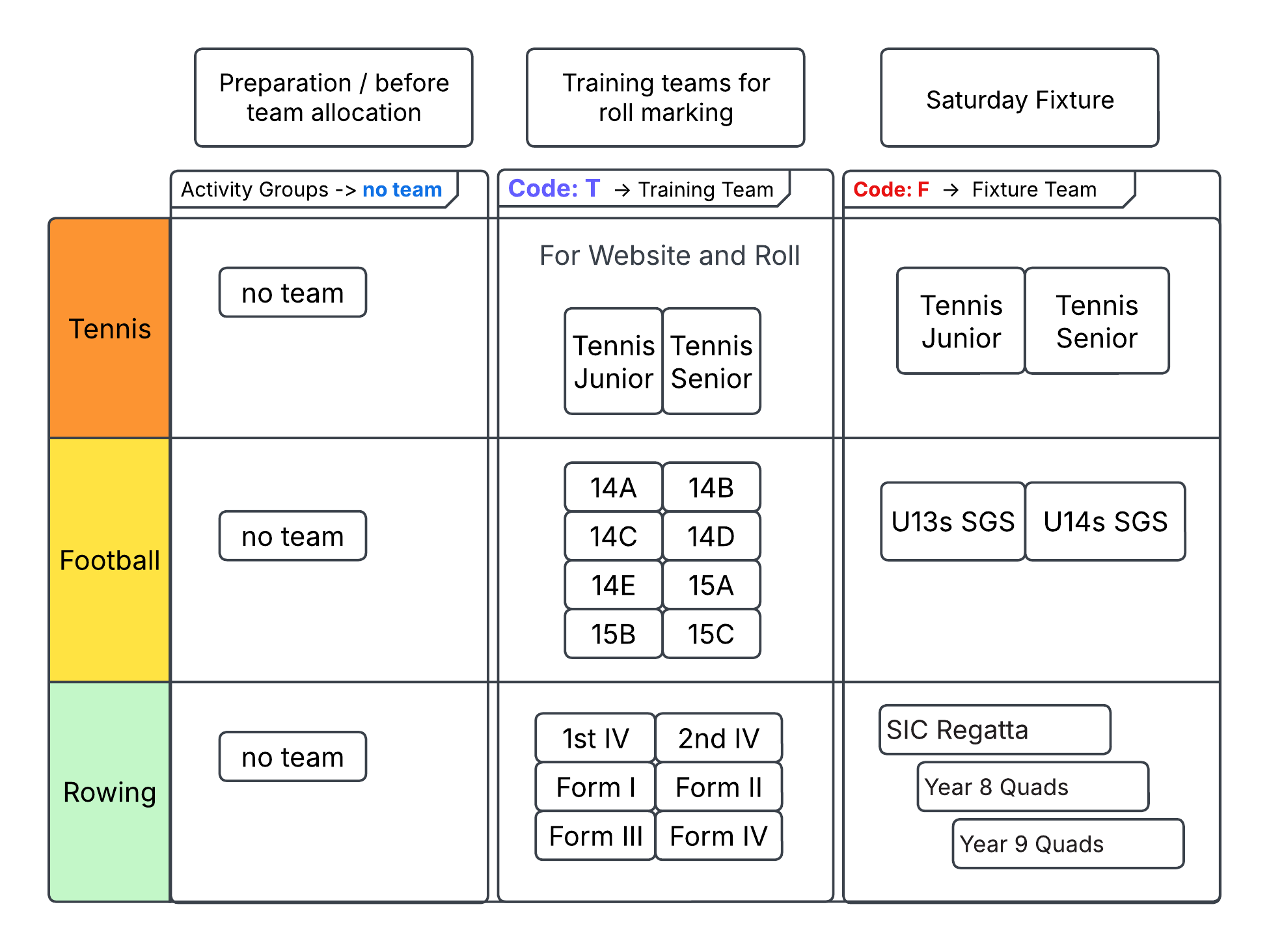
- Please noted, we currently have two types of teams you can setup:

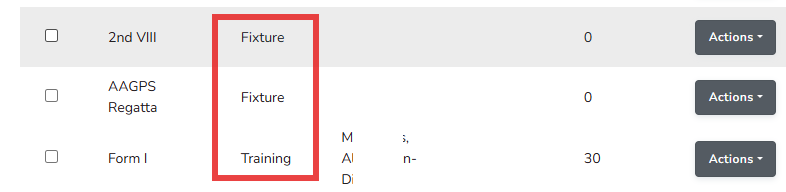
- Training Team (T) : Will Published on the Training section and these team will be use for schedule Roll marking.
- Fixture Team (F) : Will Published on the Fixture section (might be empty list, please don't delete this).
- Please input your team code accordingly, to help sports administrator to manage them accordingly. (if there's a number in the code field, that's for the sorting, Put your code "T" in front of the number and put "-" in between. e.g. Training Team Code for 13A [T-103].
- You may notice some sports will have a team "no team", this will be used to syn/upload all boys that selected the sports/co-curricular group, you can assign them away from this group once you're ready divide them into different groups.
4. Assign Teachers and Boys
- Use "Actions" button at the end of the team to assign teachers and boys.
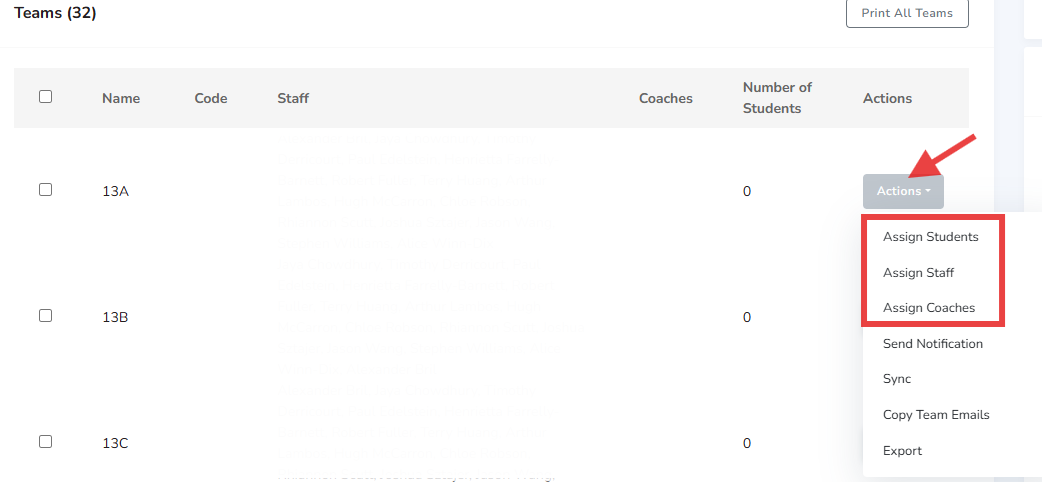
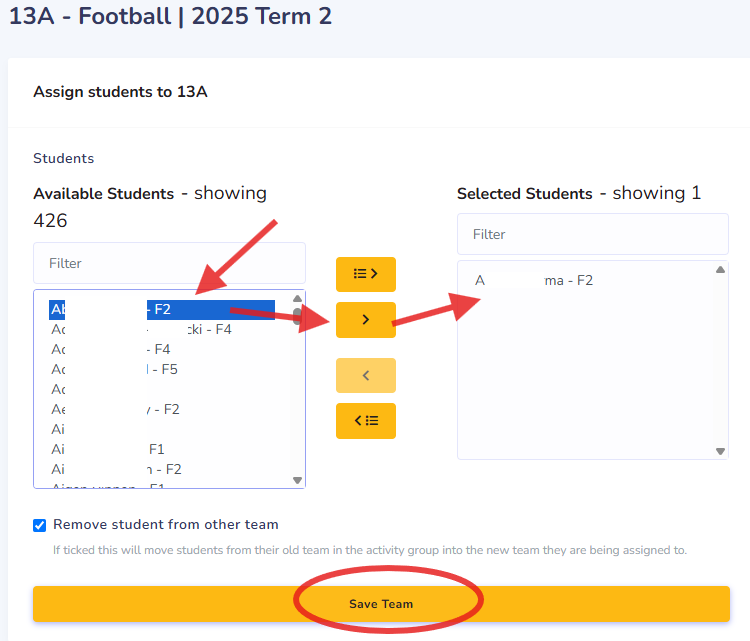
- Click "Assign Students", Search and Select the students in the list, click ">" button in the middle to move boys from left window to right "Selected Students" list, Click "Save Team" once finish. Then work through your team list to assign boys and staff.
- If you manage a big list of students, try to use "Import Teams" module to help you quickly manage student teams, especially when they often change. Click on "Import Teams"

- Choose a template to start your team list "download import template with Football | 2025 Term 2 students"
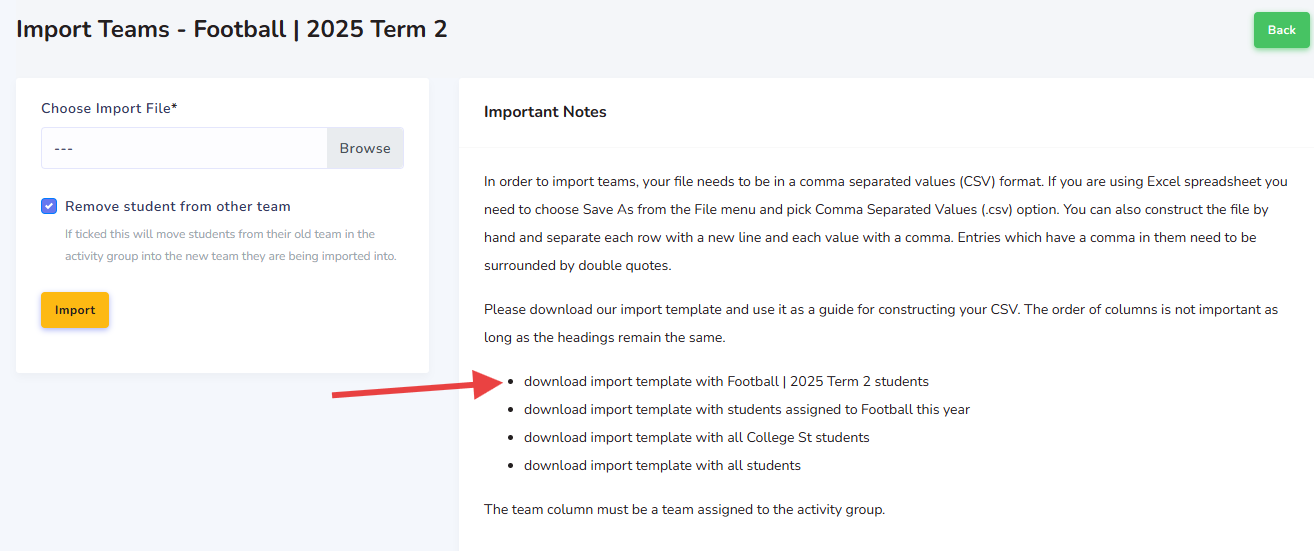
- Then, browser will download a csv file template with all boys selected this sports in this term.
- Open the CSV template file, Make sure Column A is student ID
- Column D Team name, this field must 100% match with the team name in the sports, with correct year and term. (no extra spaces in team name)
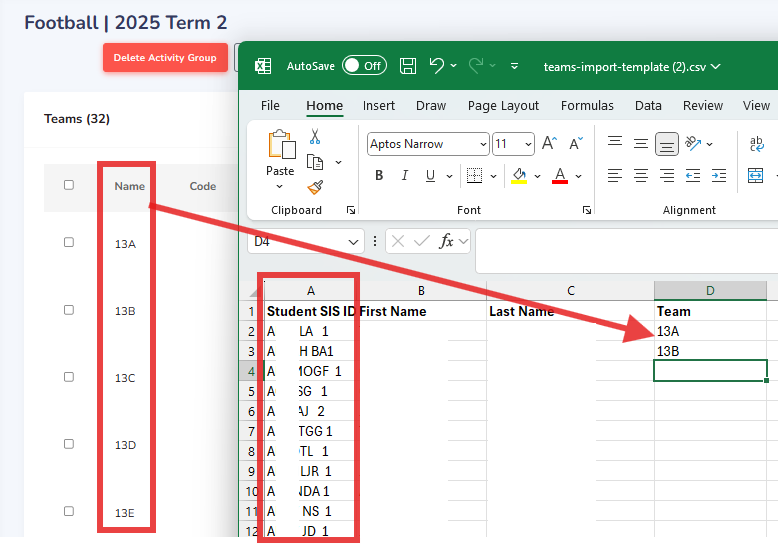
- Once you have finish this team assignment, Then upload your list, click "Import" button, then all boys should be assign into each team correctly.
- P.S. You should save this template and re-use it for future team changes during the summer or winter season, share this list with the key stakeholders who will manage the team assignment, because if this list updated, you can always re-upload again to bulk update all the team members.
Sheng is the author of this solution article.
Did you find it helpful?
Yes
No
Send feedback Sorry we couldn't be helpful. Help us improve this article with your feedback.
