
How to register School Microsoft Multifactor Authentication for the first time
You need to do this from your home PC/laptop.
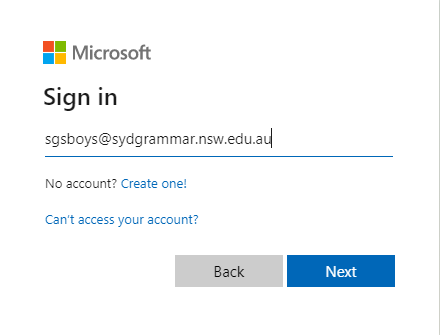
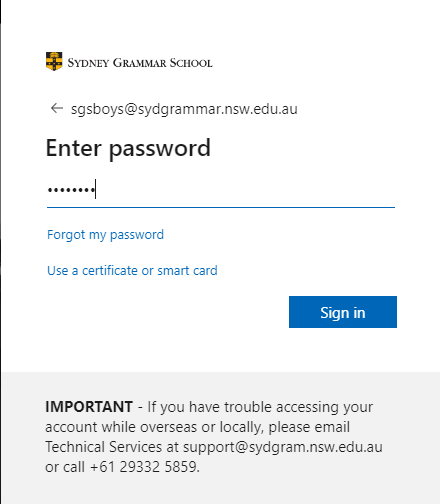
Go to https://myaccount.microsoft.com and sign-in with your school password.
Examples screenshots below.
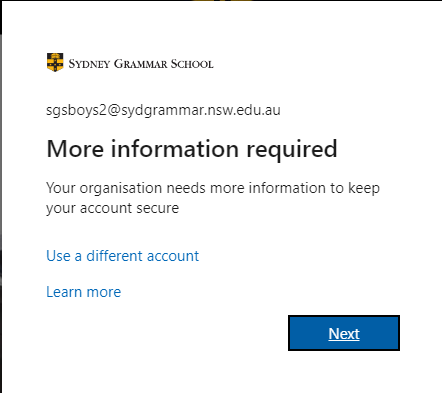
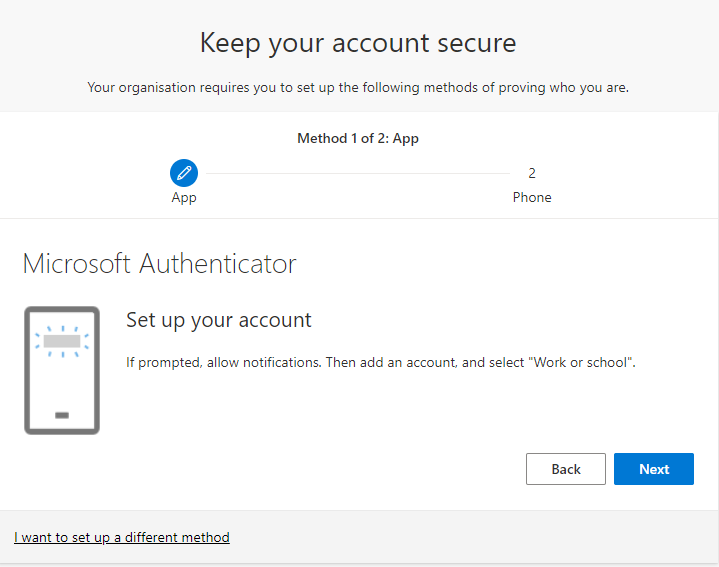
Click Next when prompted “More information required”.
Have your mobile phone ready, click Next twice on the next two screens.
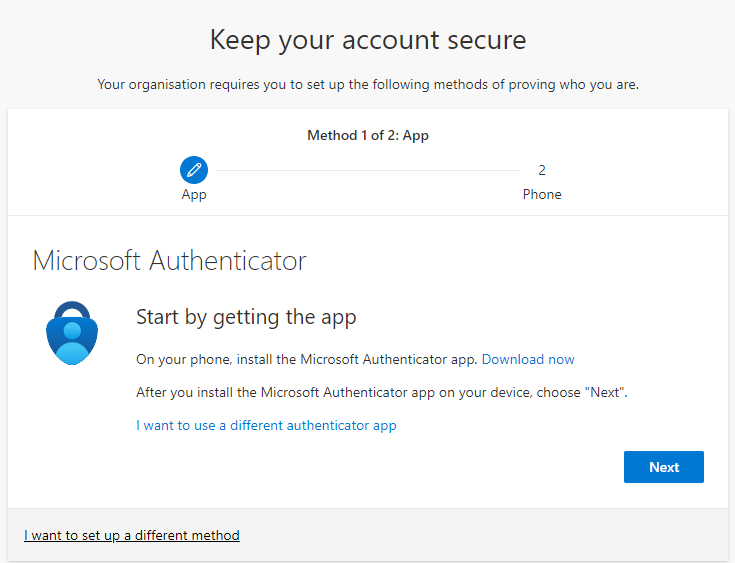
You will be presented with QR code like one here.
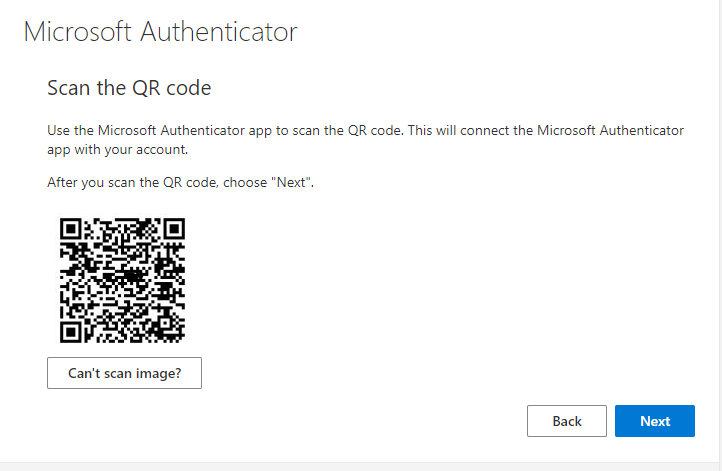
Open the Microsoft Authenticator app and tap the “+” sign.
And select “Work or school account”.
Select scan QR code and scan the code provided.
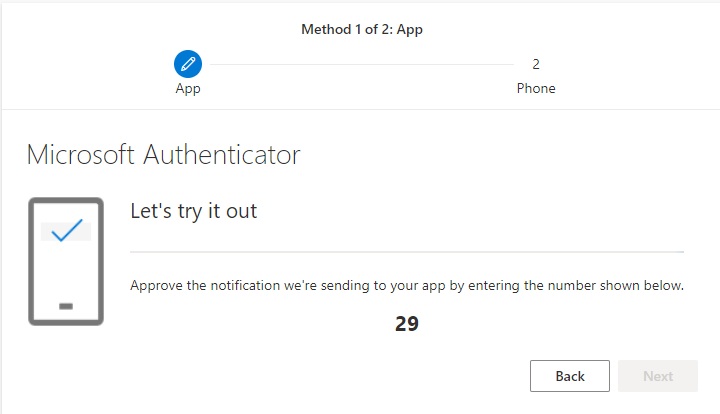
Once account registered, click Nex and you will be prompted to enter the digit code on your app to approve.
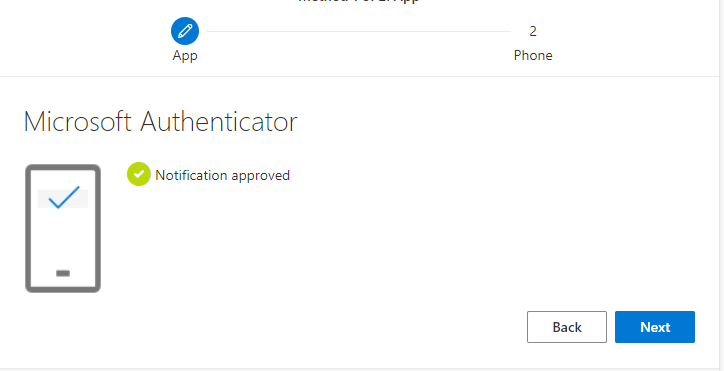
Continue steps below to register a second method.
Enter your mobile phone number and you will receive a 6-digit code.
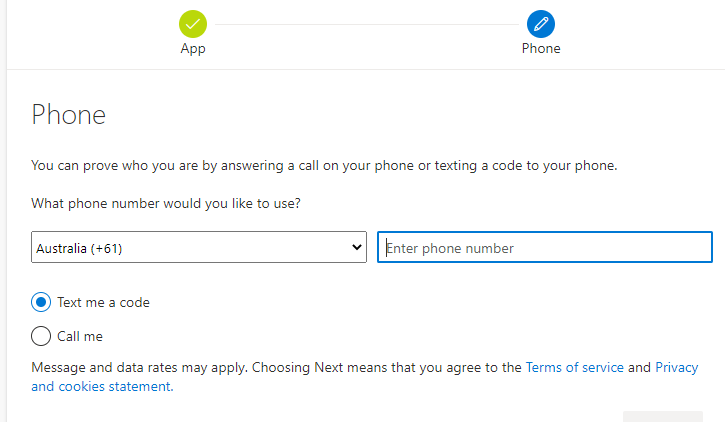
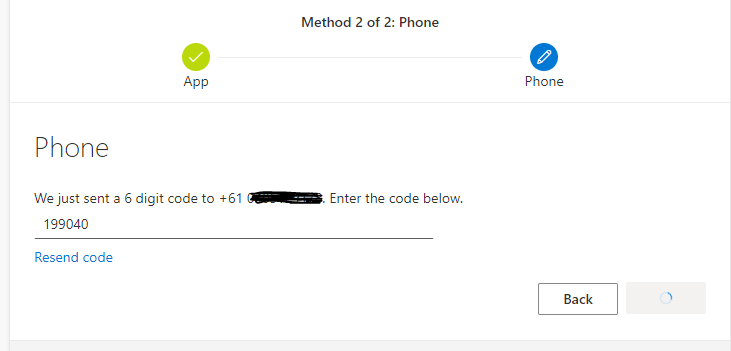
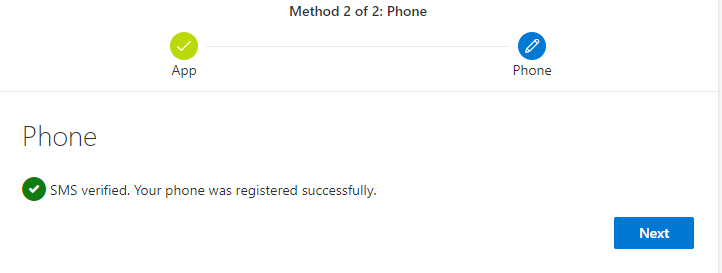
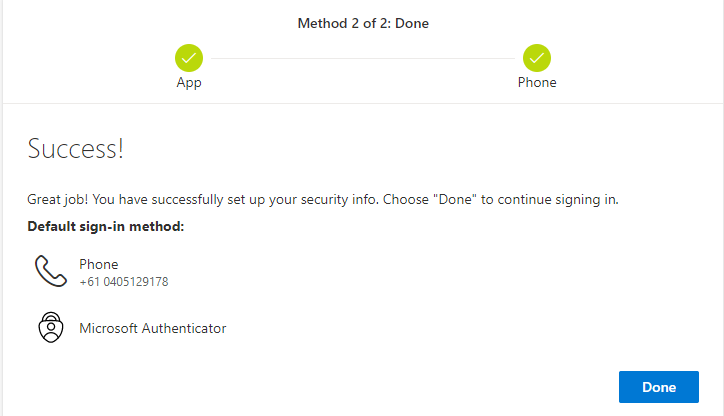
Enter the code and click Next to complete the registration.
You can also register using your personal email as an additional sign-in method in case you have forgotten or lost your phone. However, using personal email is not very secured because emails can be spoofed outside school network.
Go to https://myaccount.microsoft.com and sign-in with your school password.
Go to Security Info
Click Add sign-in method.
Select Email and add your personal email address.
Follow on screen instruction to complete setup.