
If the printer isn't listed, you can add the printer manually as follows:
Note: You must be on the school's network (i.e. connected to Internal Wi-Fi or Surface Dock) to add a network printer.
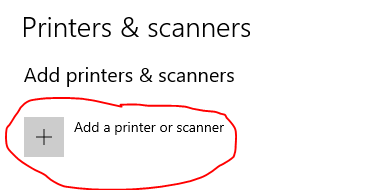
1. Click on "Add a printer or scanner"
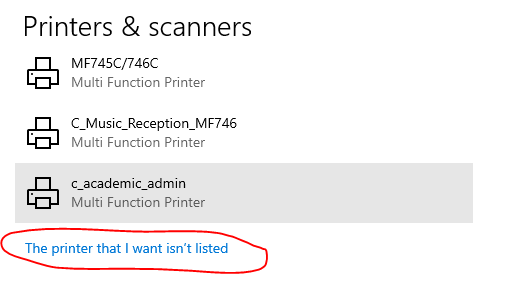
2. Scroll down to the bottom of the list of suggested printers and click on "The printer that I want isn't listed"
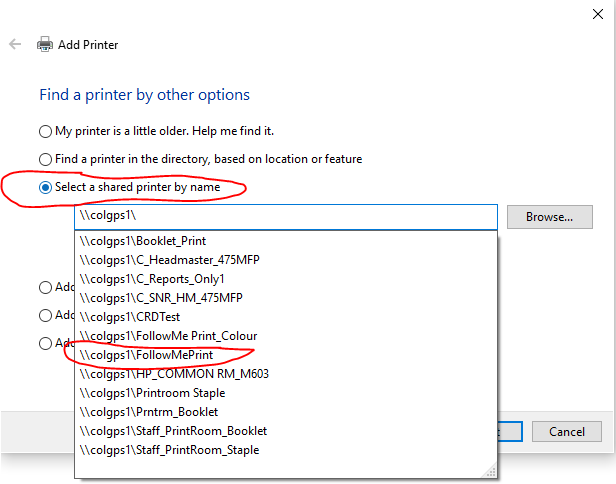
3. Choose "Select a shared printer by name" and start typing "\\colgps2\" or "\\colgps1\" and it should give you a list of printers to choose from. Click on the printer that you want from the list.
(Note: colgps2 is for the newer printers while colgps1 is for older printers and FollowMePrint)
(Note: colgps2 is for the newer printers while colgps1 is for older printers and FollowMePrint)
4. Once the printer has been added, you can set it as "default printer" if you like. To do this, click on the printer, then "Manage", then "Set as default".