
If you are using web browser
- Start a new email message
- Click on the “Encryption” icon
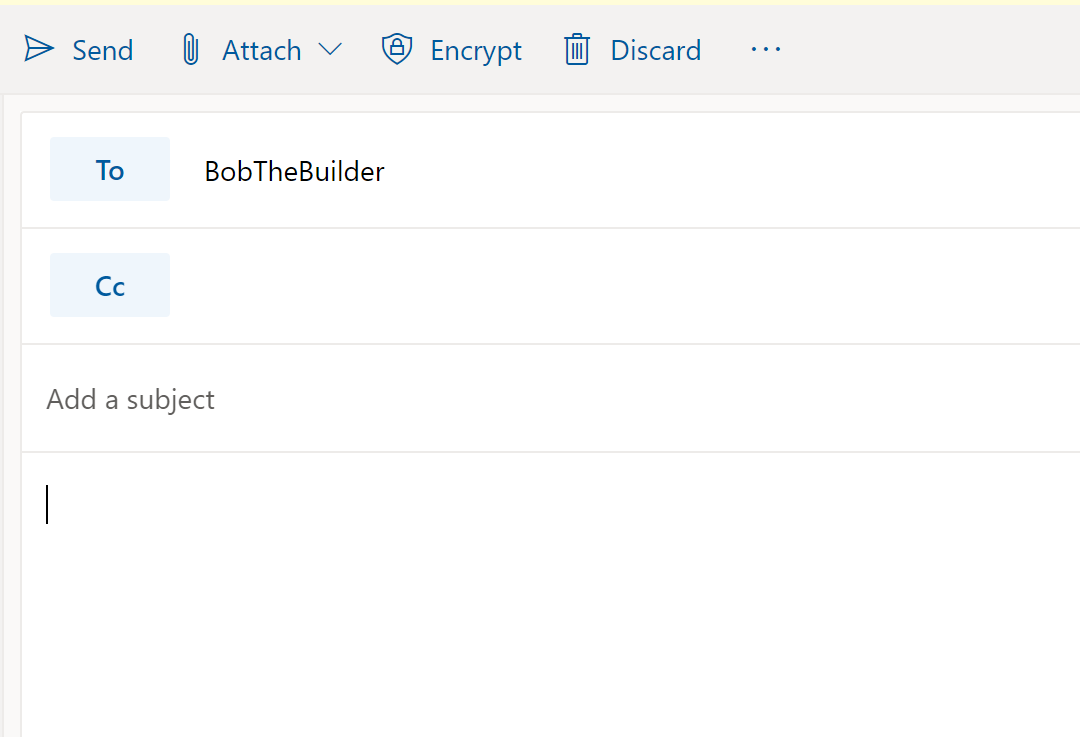
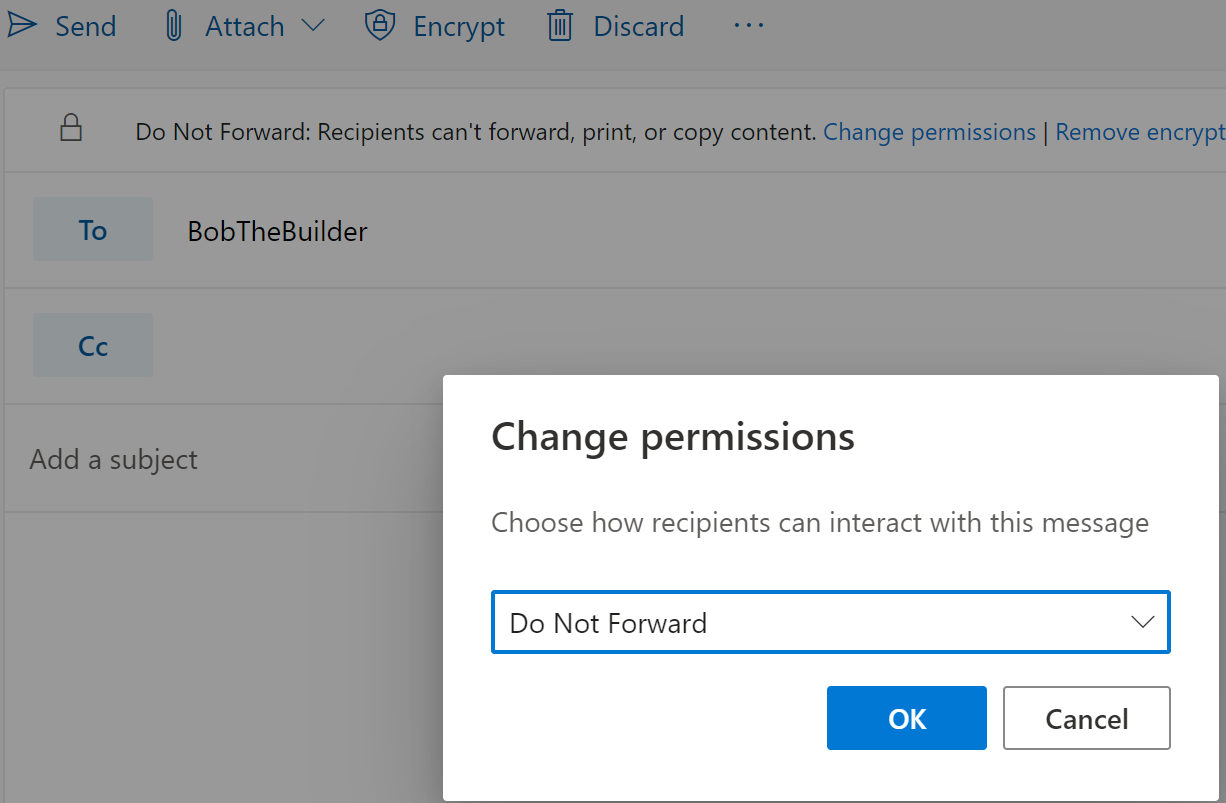
- The email will be encrypted when you send, however, you can enforce more restriction on the email by clicking “Change permissions”
Change to “Do Not Forward”, this will prevent recipients forwarding, printing or copy sensitive contents.
- Enter the recipient email address
- Add subject, e.g. CONFIDENTIAL – XXXXX
- Add attachment if any
- Click send
If using Outlook desktop client app
- Start a new email message
- Click “Option” menu
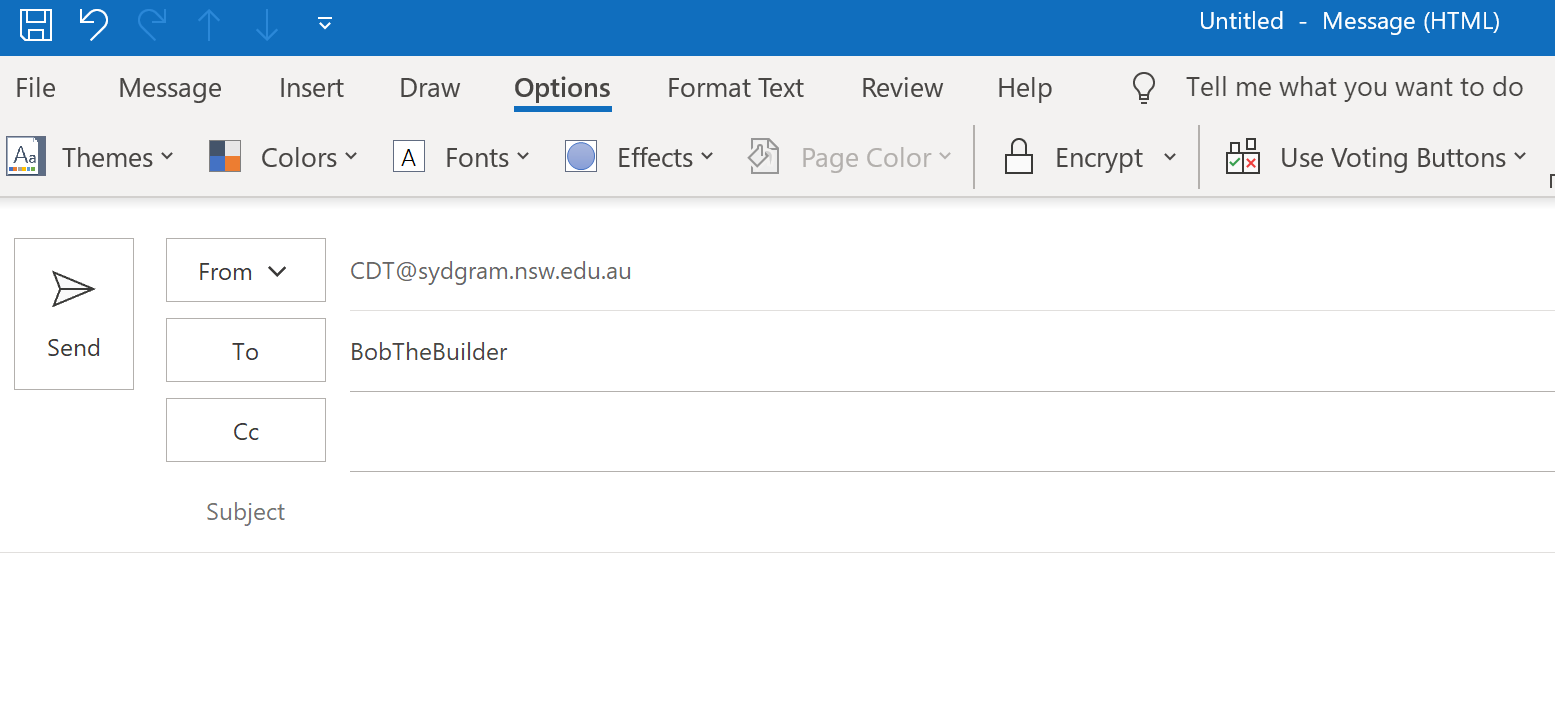
- Click “Encrypt”, you can select “Encrypt only” or “Do Not Forward”
Change to “Do Not Forward”, this will prevent recipients forwarding, printing or copy sensitive contents.
- Click send