
You are required to register your Sydney Grammar School account to use with Microsoft Authenticator app.
Section A: Here are the steps to set up the “Microsoft Authenticator” app on your mobile device (You can skip this if you already setup your Microsoft Authenticator)
- Download the “Microsoft Authenticator” app from the “Apple App Store” or “Google Play Store” to your mobile device.
Recommended doing steps 2-6, 9, 11 on a laptop/PC because you will require your mobile device camera to scan QR code.
- Browse to this link https://account.activedirectory.windowsazure.com/ and log in with your school user ID and password.
- Click on your user ID on the top right corner and click on “Profile”.
- Click on "Additional Security Verification" or "View Account".
- Click "Security Info".
- Click "Add Method" and select "Authenticator App" and hit add then proceed to next step.
- Open the Authenticator App on your mobile device and click "+" sign (NOTE - On different device manufacturer might appear differently) and then select "Work or School Account".
- Use the camera on your mobile device to scan the QR code displayed on your laptop/PC screen (do not scan the sample screen shot below) and a new profile will appear in the “Microsoft Authenticator” app.
NOTE – If your mobile device camera does not appear, it is because you have restrictions set on the device. If this is the case, please follow the instructions on the QR code screen displayed on your laptop/PC.
- On your laptop/PC, click next button on the QR code screen to verify app. If verification fails, click retry.
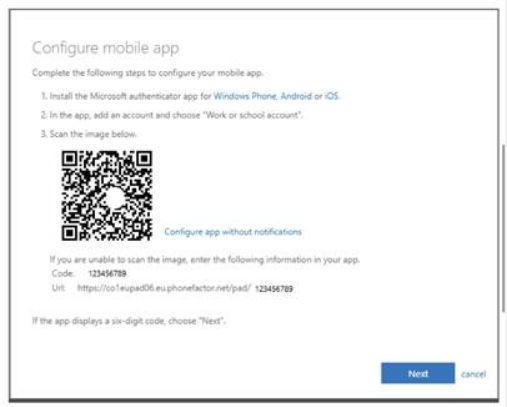
10. A pop-up will appear on your mobile device, click “Approve” when prompted.
- On your laptop/PC, click “Save” when done and you will be prompted to do one final verification; just click "Verify Preferred Option" and click “Approved” on your mobile device.
- Under "Security Info", make sure "Microsoft Authenticator - notification" is selected as the default sign-in method.

Use the Remote Desktop Connection and connect to remote.sydgram.nsw.edu.au
Section B:
Here are the steps to access the Remote Desktop Server from your Surface Pro
- Run “Remote Desktop Connection” by clicking on the Windows icon and typing Remote desktop. Right click and pin to start menu.
- From the start menu click on “Remote Desktop Connection”.
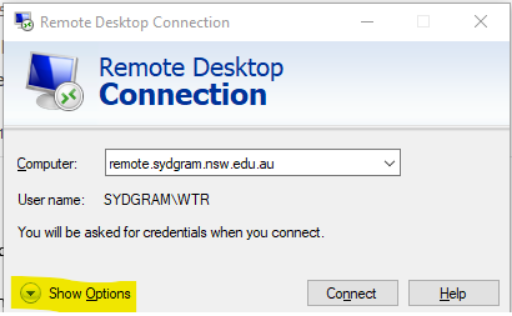
- Click on Show Options
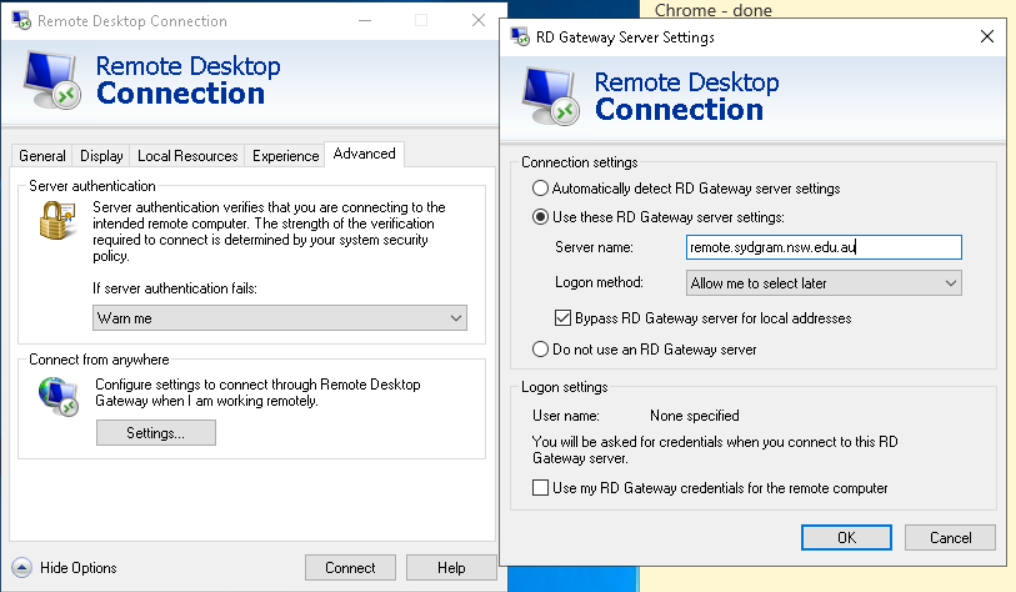
- Click the “Advanced” tab and then click on “Settings” and make sure the box is filled in as per below
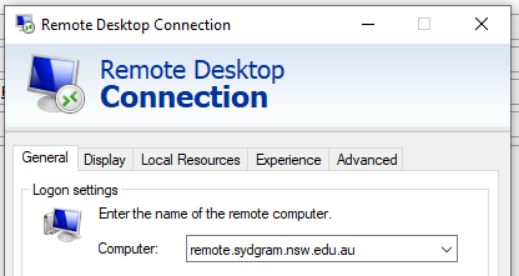
- Then click the “General” tab and type in the address remote.sydgram.nsw.edu.au and then click “Connect”
- It will prompt you to log in with your Sydney Grammar School account.
IMPORTANT - Remote desktop will NOT work if you login with PIN; must change to use password.
Please note that you will get a notification on your mobile phone to Approve access.
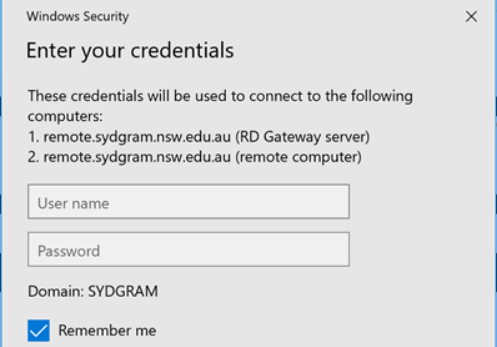
What to expect after you logged in to the Remote desktop Server
- Microsoft Edge default browser will launch together with Staff Portal page tab.
- All essential applications are in the Start Menu
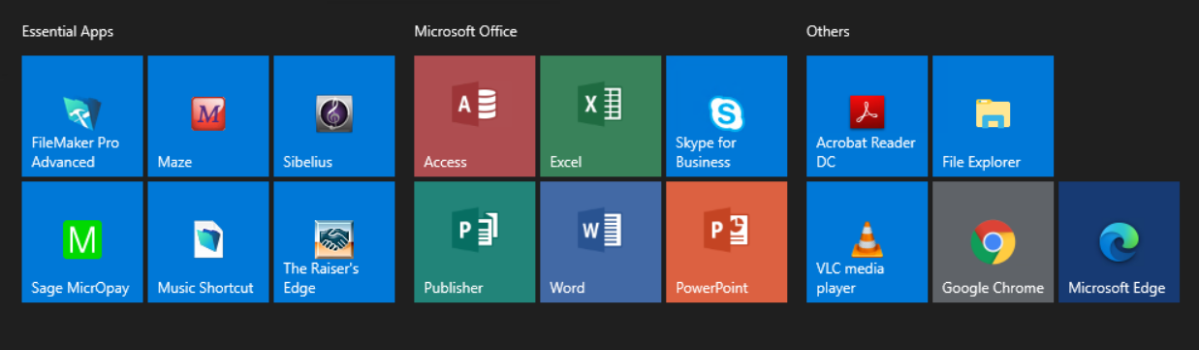
- Additional shortcuts will be available on the taskbar
 and on the desktop