How to remove cached Outlook email address
ISSUE
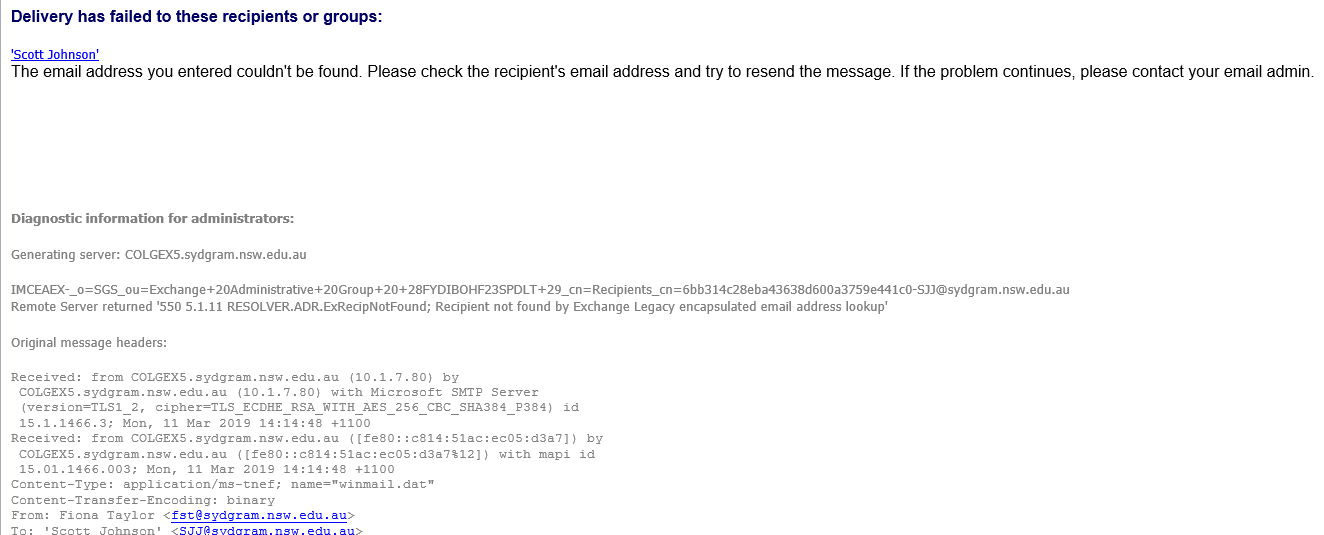
User getting bounce back email with error message like below
CAUSE
Recipients’ mailbox been deleted and recreated with a new GUID, hence the bounce email occurred.
SOLUTION
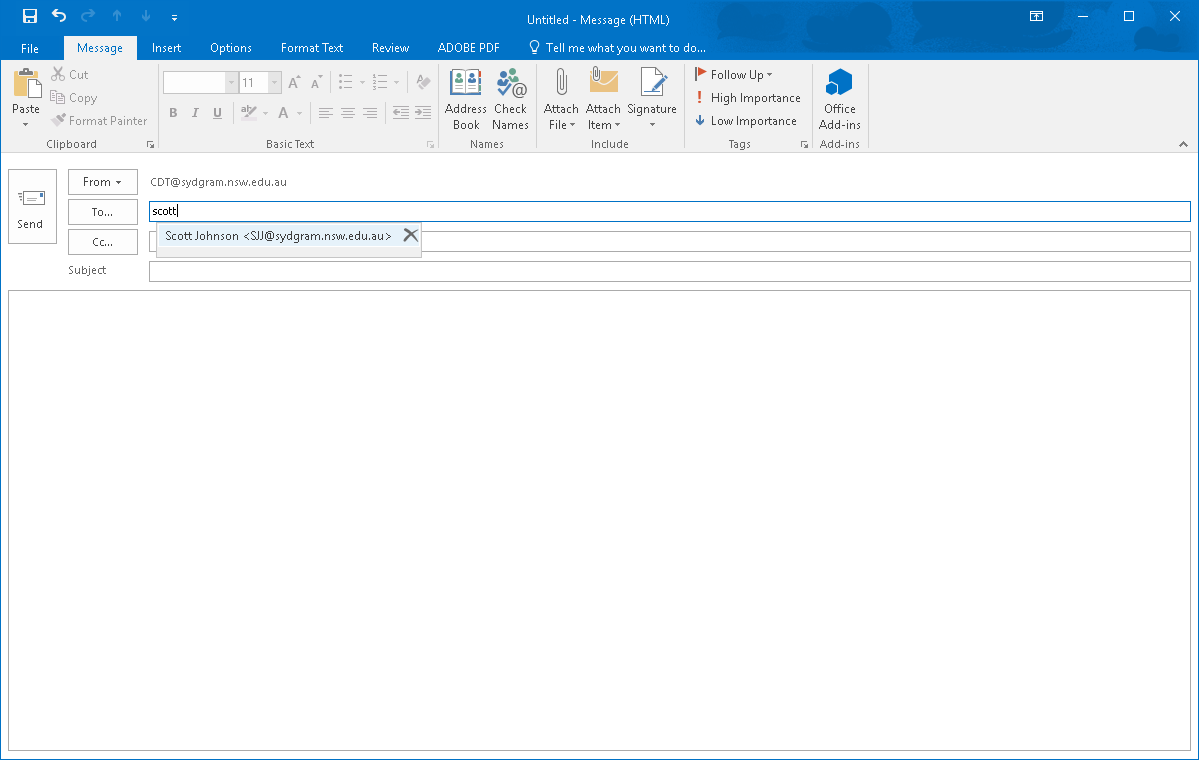
Compile a new email message and type in the recipients’ name and the cached entry will appears.
Click the cross [X] to delete the cached entry.
Click “To” button to open the address book and search and select the recipient in the address book, once done, Outlook will save the new entry.